> ## Documentation Index
> Fetch the complete documentation index at: https://docs.sipapp.io/llms.txt
> Use this file to discover all available pages before exploring further.
# Color Dock
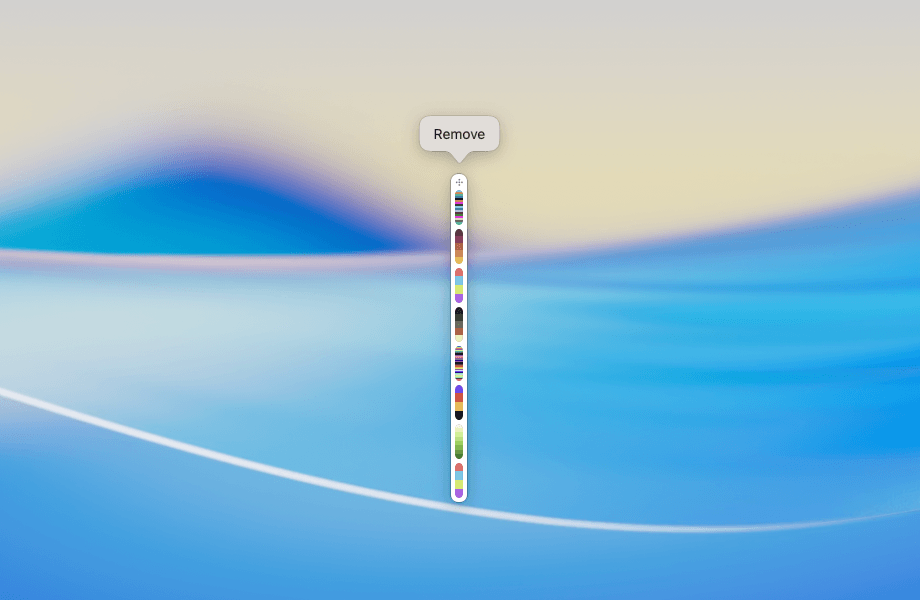
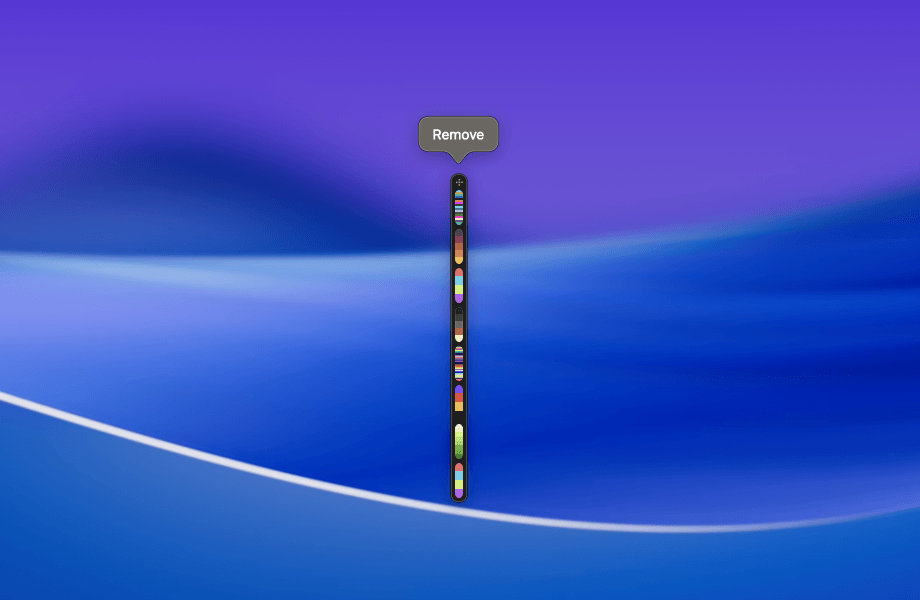
The **Color Dock** makes your palettes easily accessible while staying unobtrusive.
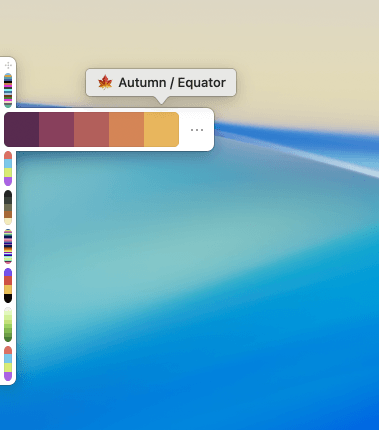
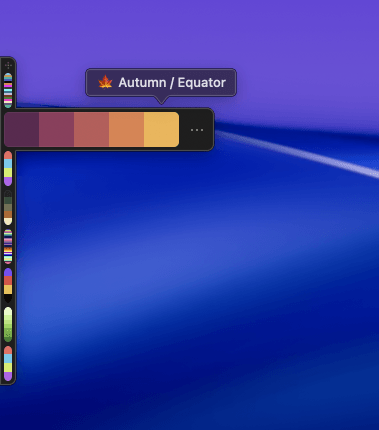
It lives at the edge of your screen, always on top of other windows, so you can access your colors anytime without losing focus on your work.
 ## Adding Palettes to the Color Dock
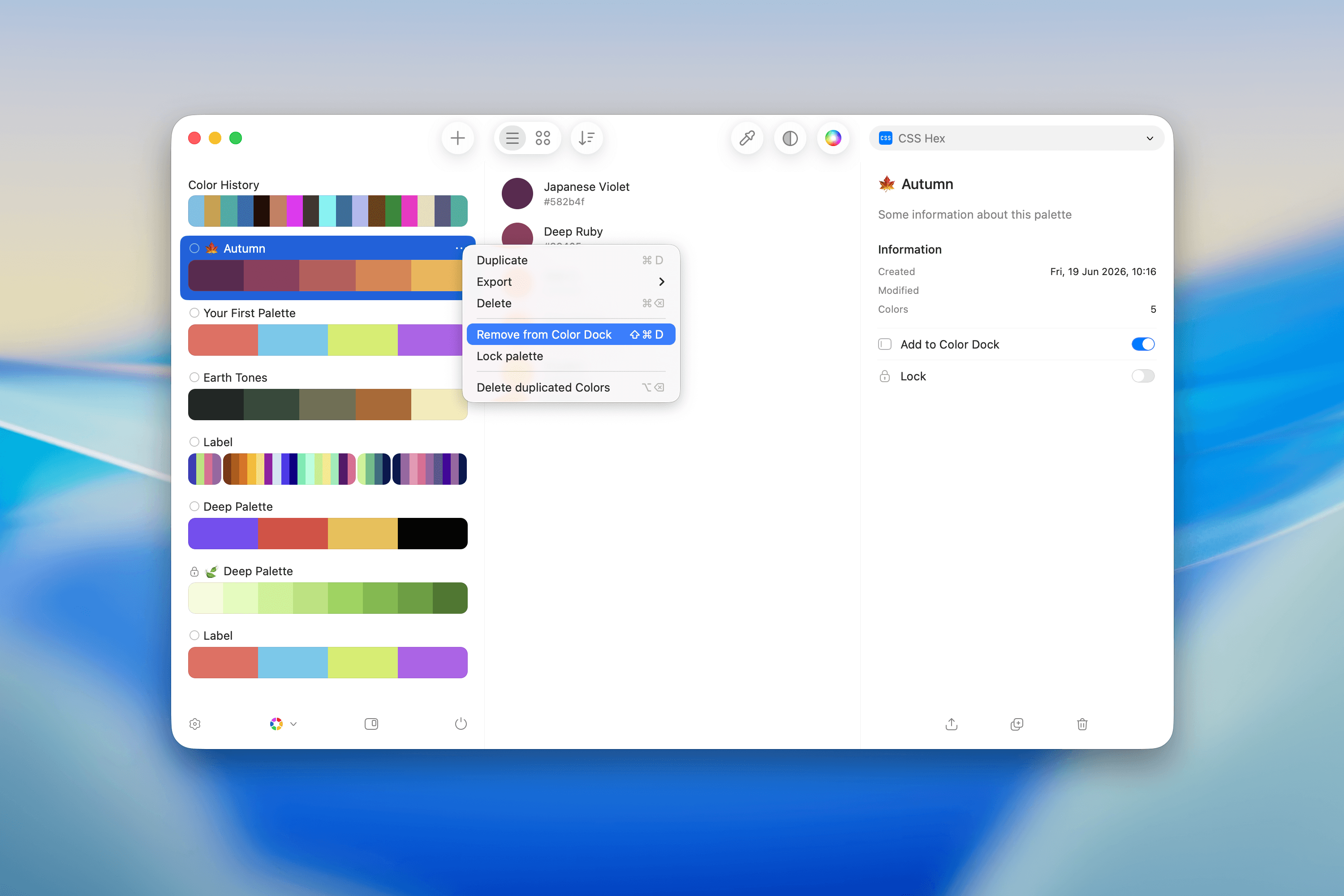
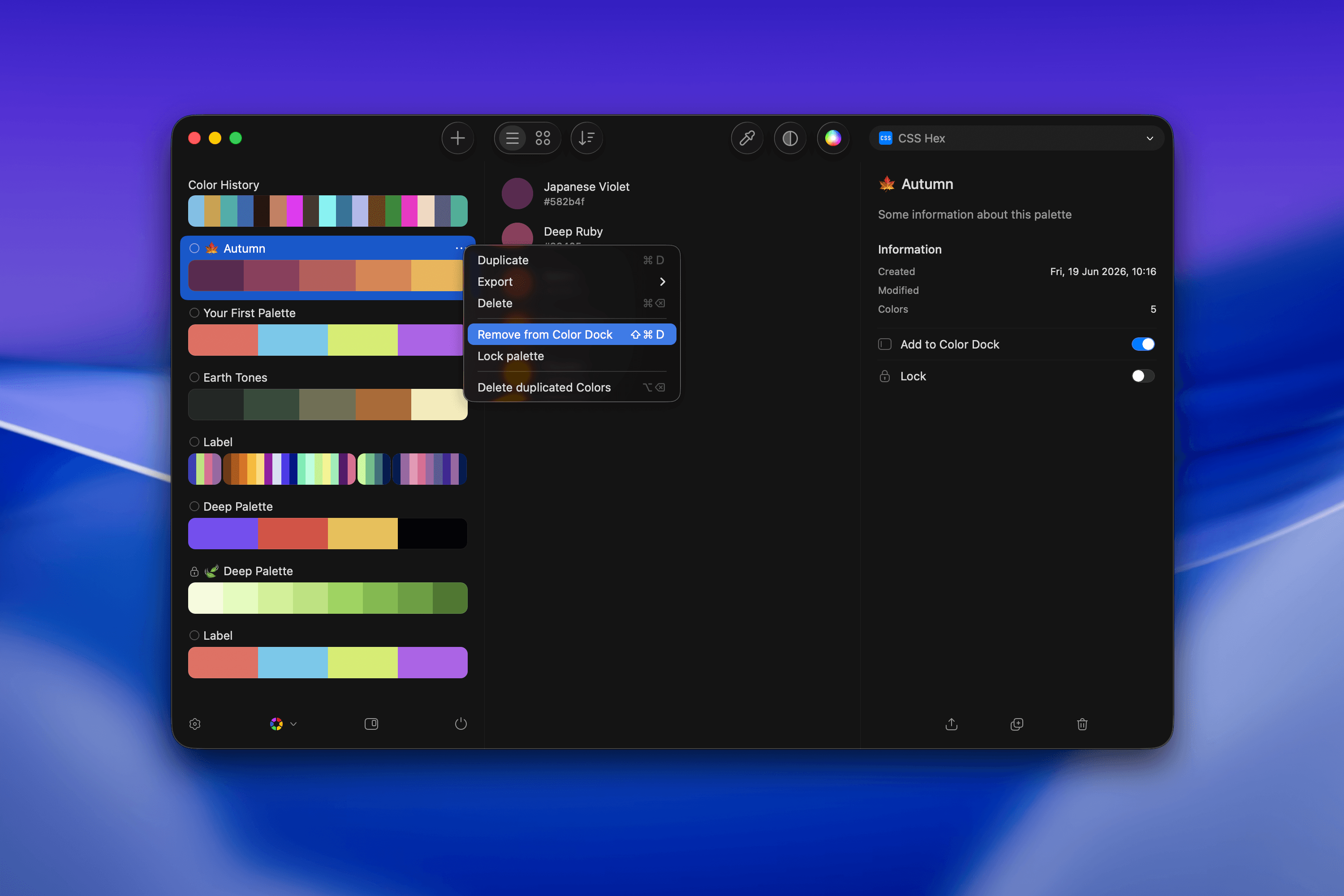
You can choose which palettes appear in the Color Dock by enabling the **Add to Color Dock** option from a palette's actions menu.
Open the palette actions menu and choose **Add to Color Dock**. To remove it later, choose **Remove from Color Dock** from the palette or from the Dock.
## Adding Palettes to the Color Dock
You can choose which palettes appear in the Color Dock by enabling the **Add to Color Dock** option from a palette's actions menu.
Open the palette actions menu and choose **Add to Color Dock**. To remove it later, choose **Remove from Color Dock** from the palette or from the Dock.
 ## Moving the Color Dock
To reposition the Color Dock:
* **Drag** it to a new location.
* When released, the Dock snaps to the nearest screen edge.
To hide the Color Dock, drag it to the center of your screen. To show it again, go to Preferences > Color Dock > Show Color Dock.
## Moving the Color Dock
To reposition the Color Dock:
* **Drag** it to a new location.
* When released, the Dock snaps to the nearest screen edge.
To hide the Color Dock, drag it to the center of your screen. To show it again, go to Preferences > Color Dock > Show Color Dock.
 ## Actions in the Color Dock
Each palette in the Color Dock has an action icon (**•••**). Hover over it to reveal options:
* **Edit** the palette.
* **Remove** the palette from the Color Dock.
* **Lock** or **Unlock** the palette to prevent or allow edits.
* **Delete** a palette.
You can also click a color in the Dock to make it the current color, or drag colors out of the Dock into your workflow.
## Actions in the Color Dock
Each palette in the Color Dock has an action icon (**•••**). Hover over it to reveal options:
* **Edit** the palette.
* **Remove** the palette from the Color Dock.
* **Lock** or **Unlock** the palette to prevent or allow edits.
* **Delete** a palette.
You can also click a color in the Dock to make it the current color, or drag colors out of the Dock into your workflow.