> ## Documentation Index
> Fetch the complete documentation index at: https://docs.sipapp.io/llms.txt
> Use this file to discover all available pages before exploring further.
# Palettes
Palettes help you organize and manage your colors based on your project’s requirements and your team’s workflow. Grouping colors within a Palette mirrors how you might structure a color system.
## Create Palette
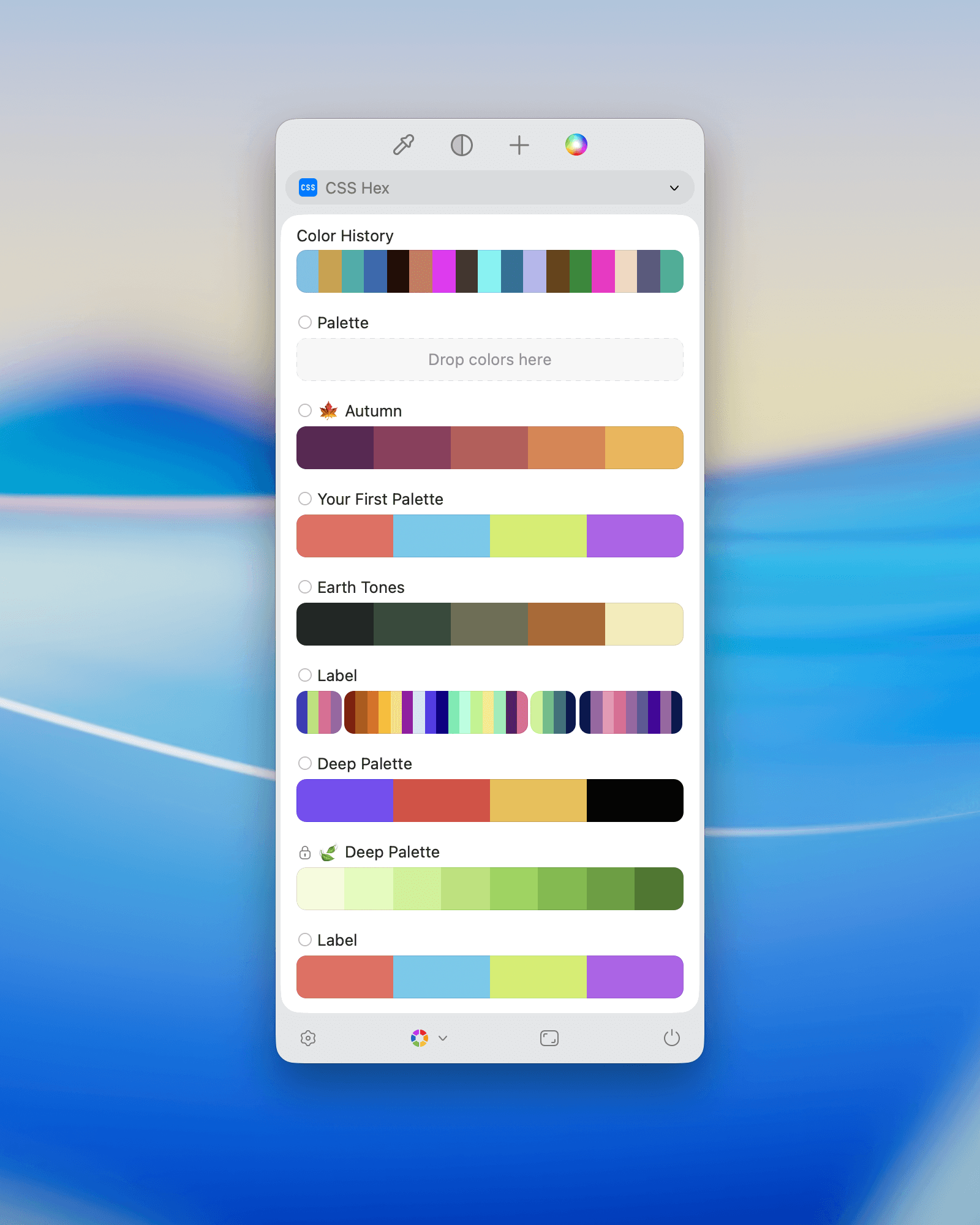
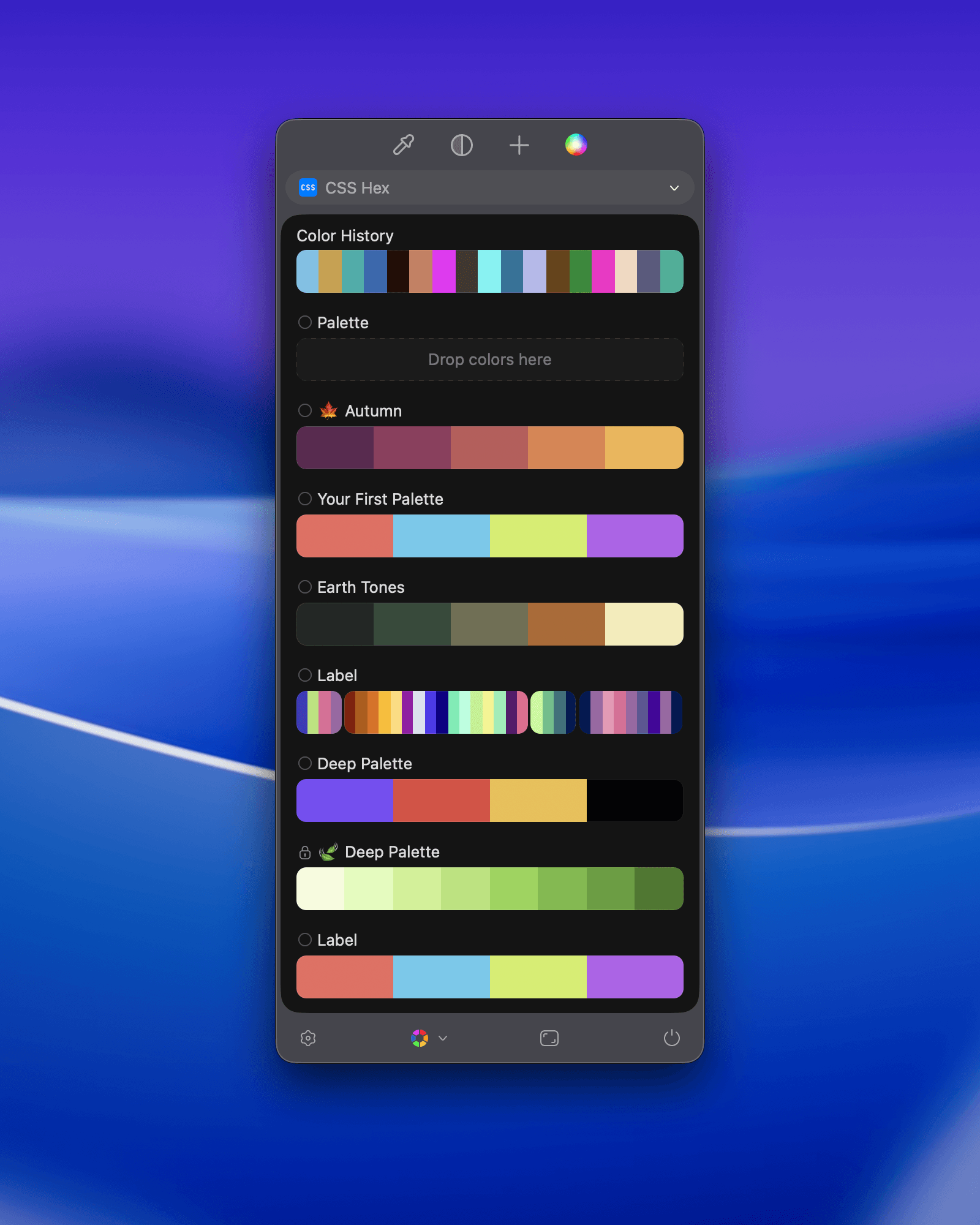
You can create a new palette from the Main Window or Sip's menu.
### From the Main Window
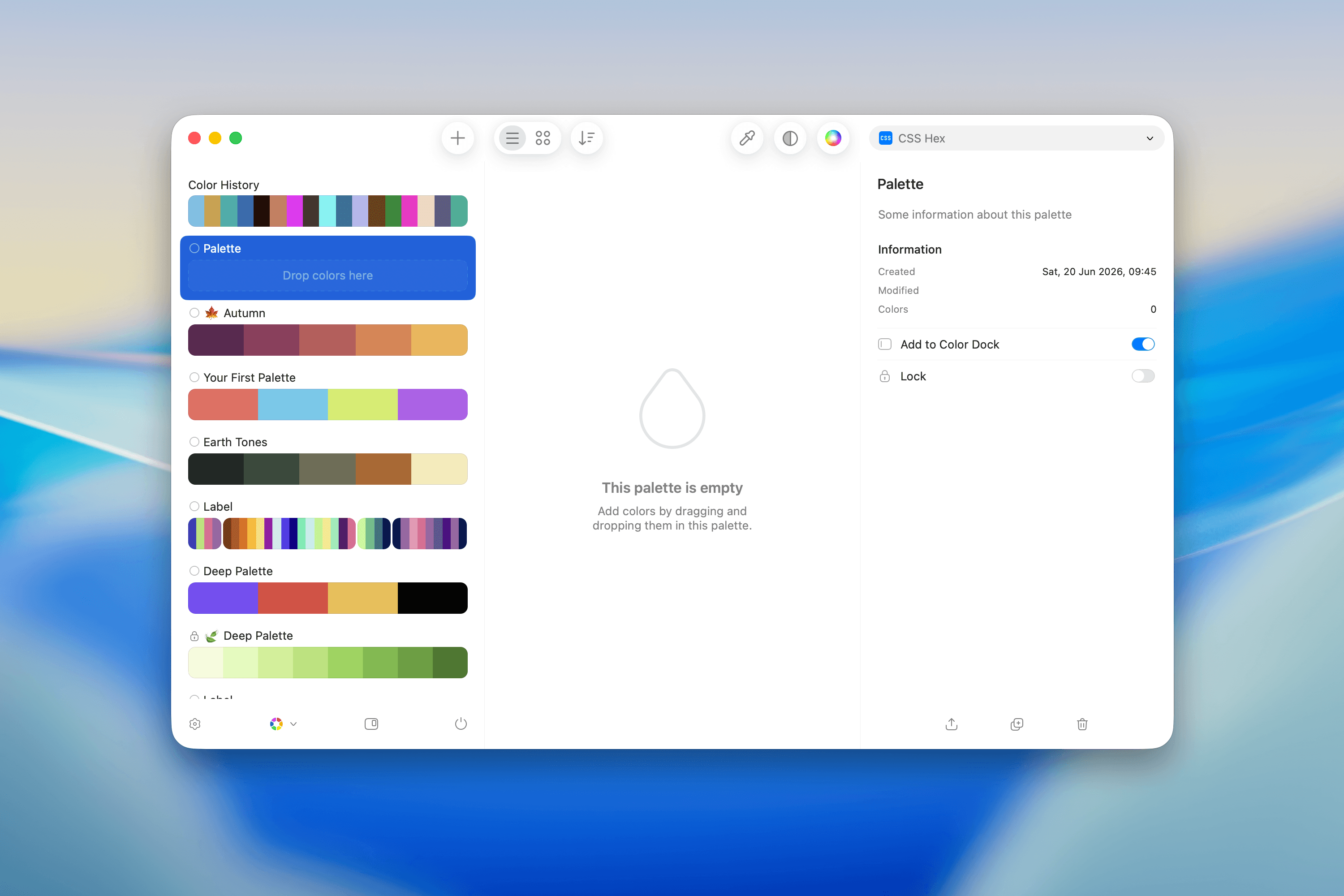
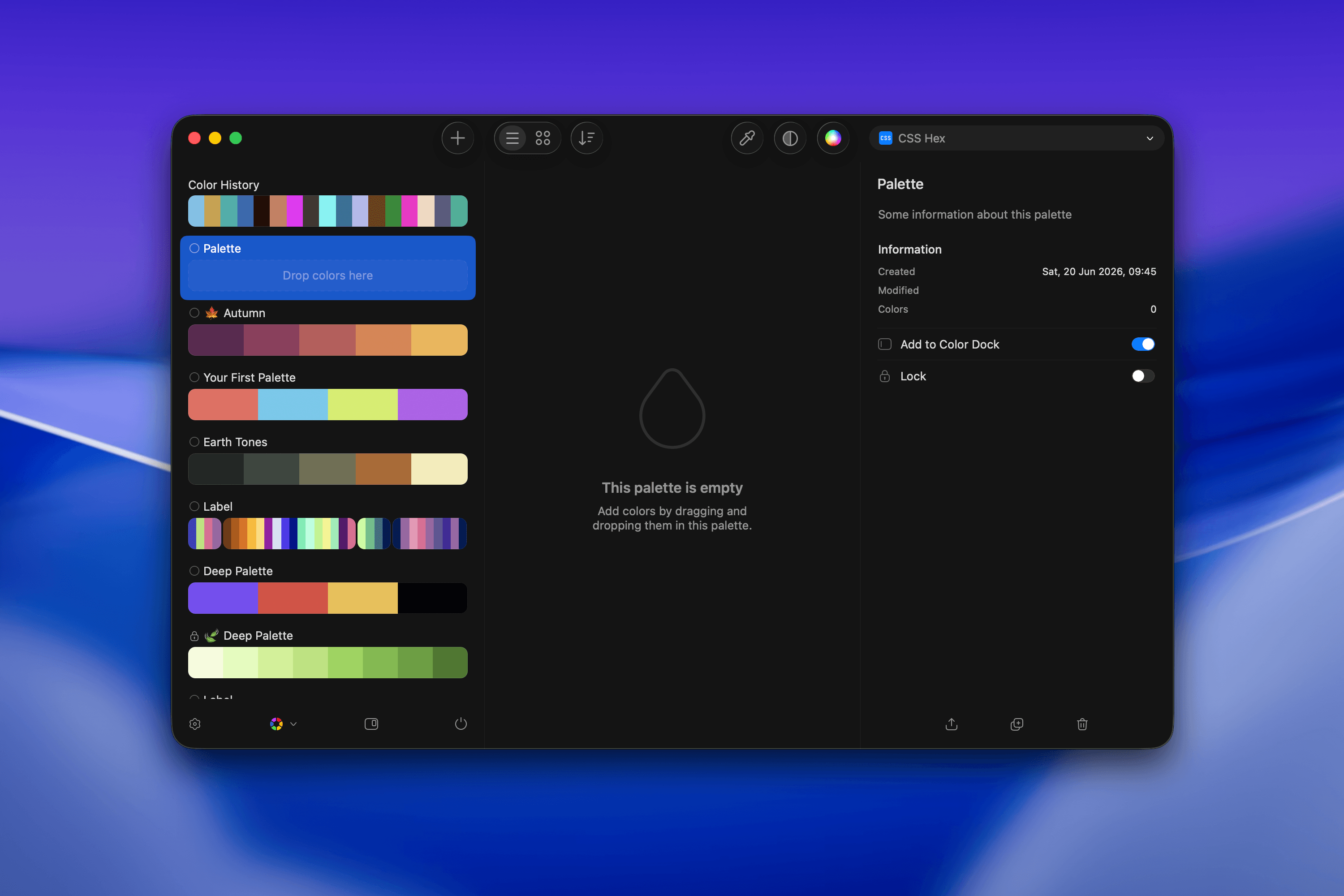 * Click the `+` button.
### From Sip's Menu
* Click the `+` button in the toolbar.
* Click the `+` button.
### From Sip's Menu
* Click the `+` button in the toolbar.
 ## Add Colors
Once you've created a palette, you can add colors to it by:
* Using the **Color Picker** while the Palette is selected.
* Dragging colors from other palettes into the new one.
* Holding ⌥ while dragging to copy colors instead of moving them.
## Add Colors
Once you've created a palette, you can add colors to it by:
* Using the **Color Picker** while the Palette is selected.
* Dragging colors from other palettes into the new one.
* Holding ⌥ while dragging to copy colors instead of moving them.
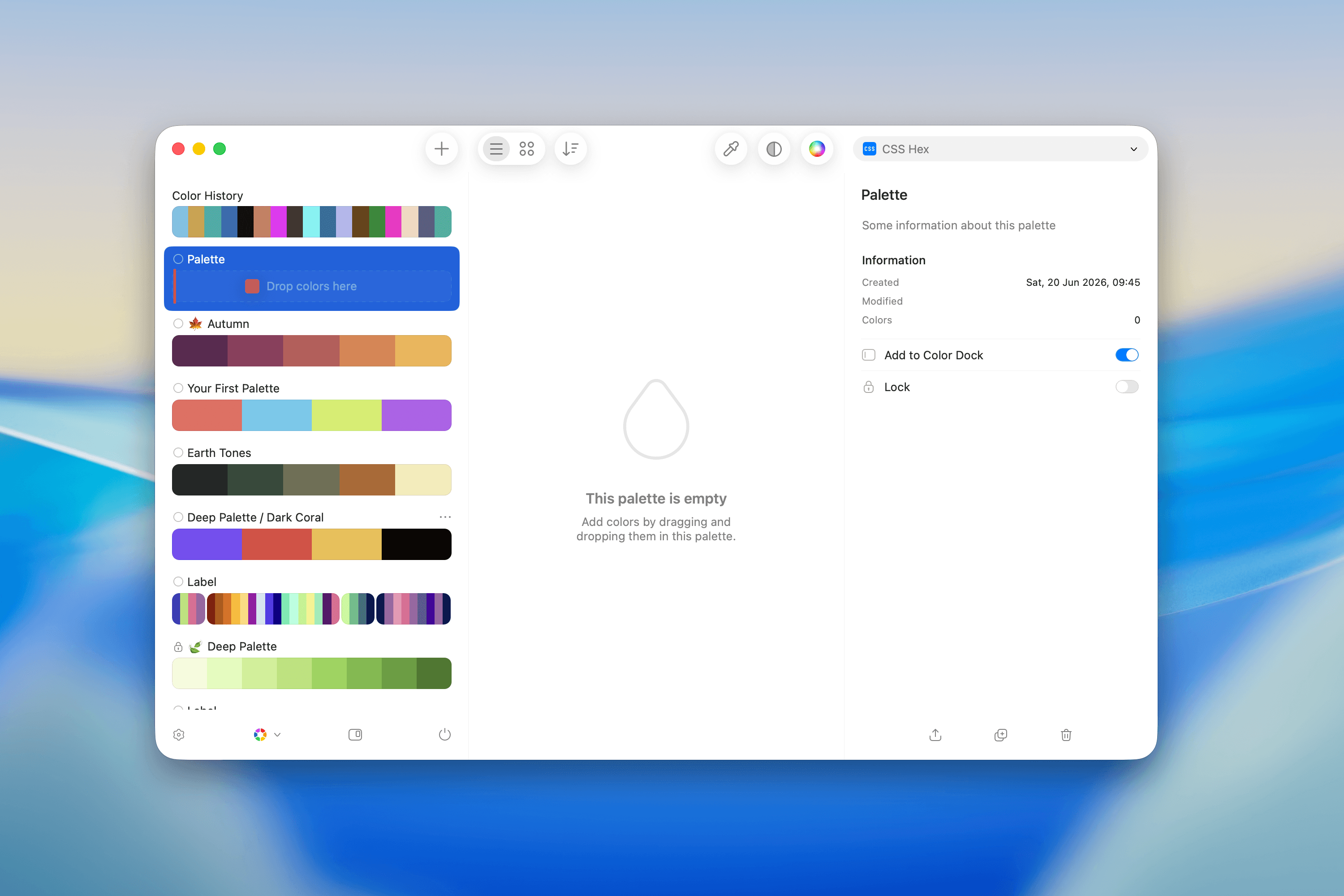
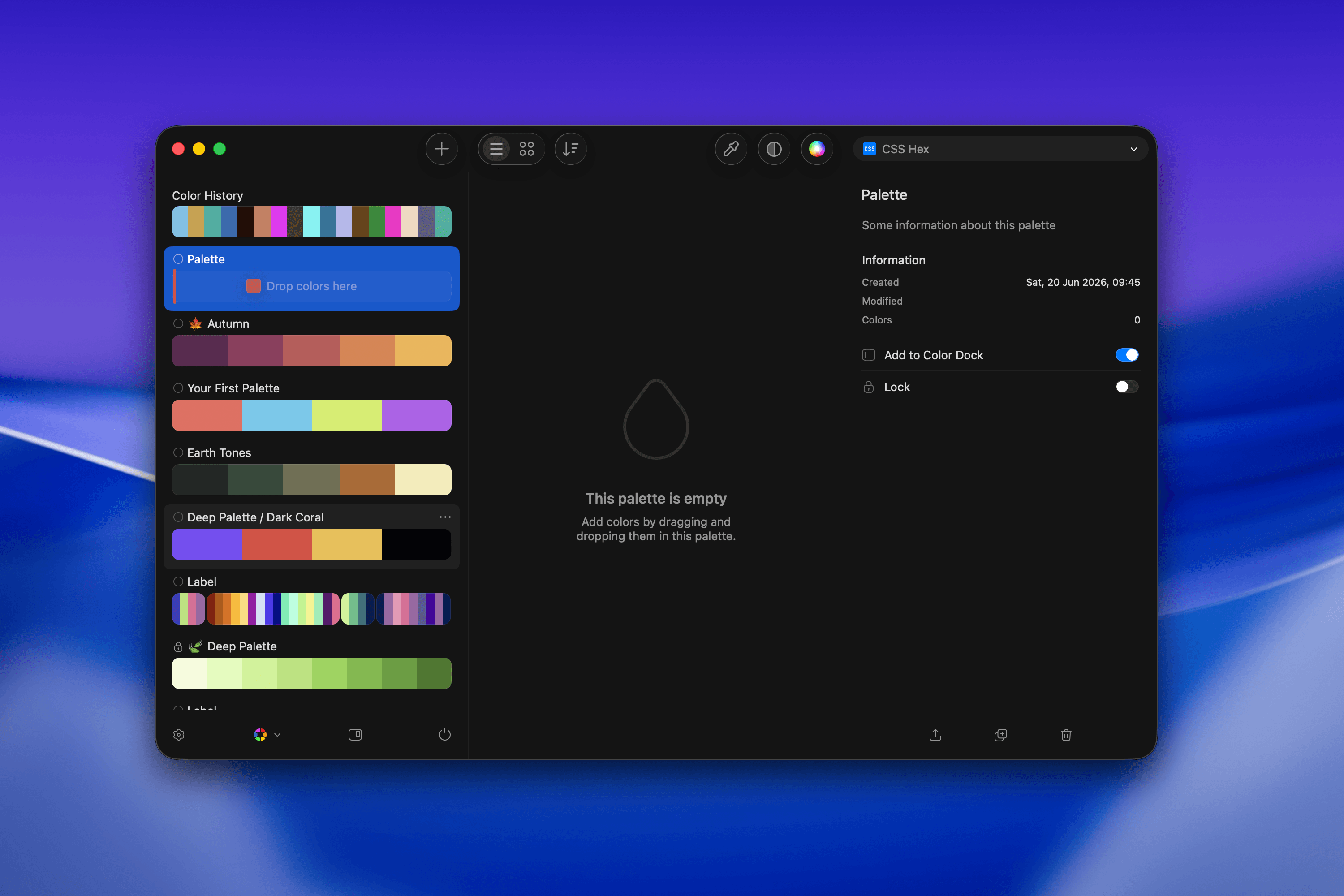 ## Editing Names and Notes
Palettes can be named, and you can add a description to help your team understand the palette's purpose, use cases, or project relevance.
## Editing Names and Notes
Palettes can be named, and you can add a description to help your team understand the palette's purpose, use cases, or project relevance.
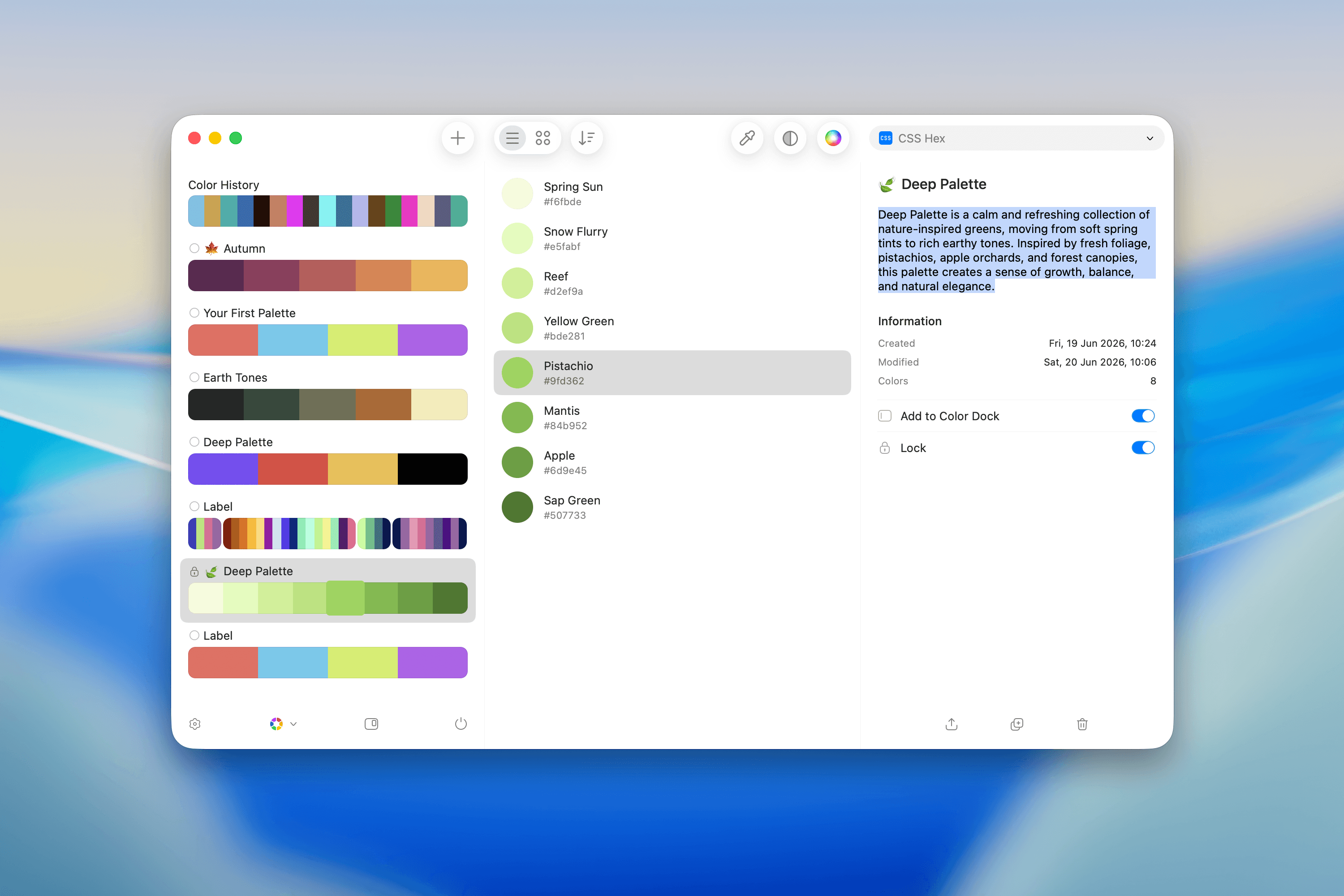
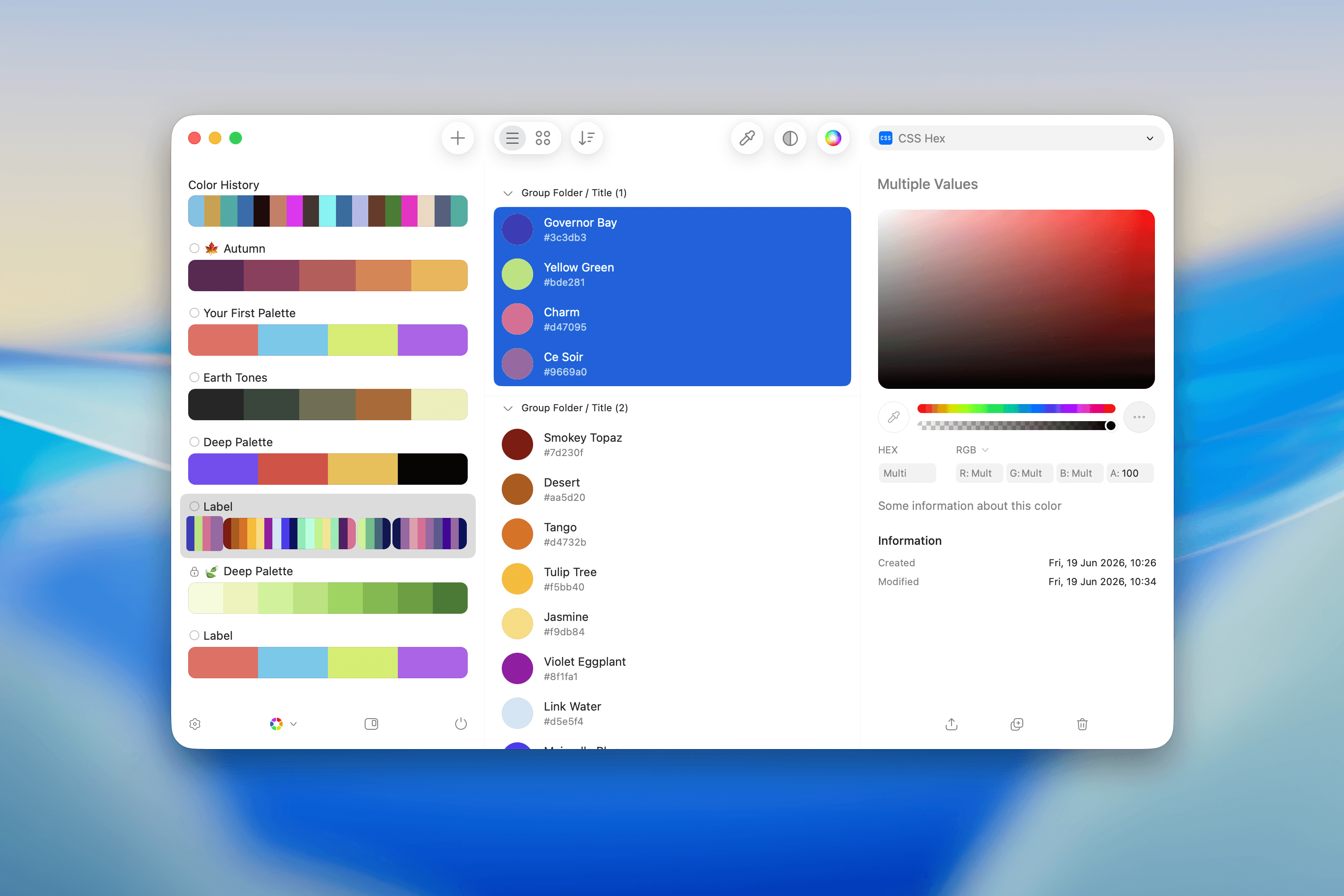
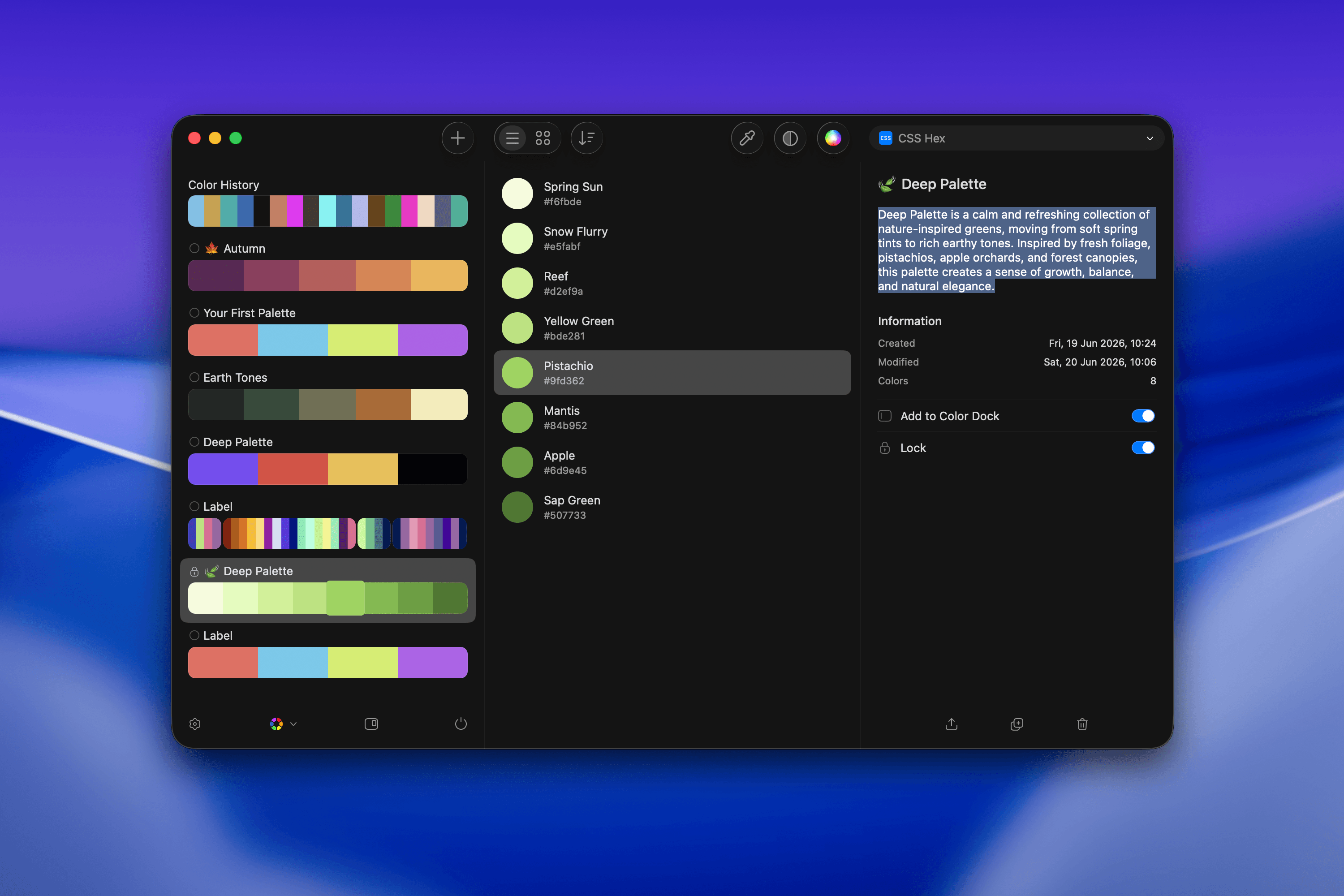 ## Grouping Colors
To group colors within a Palette:
* Select the colors you want to group.
* Open the contextual menu (right-click or use the menu icon).
* Select **Group** to create a named subgroup within the palette.
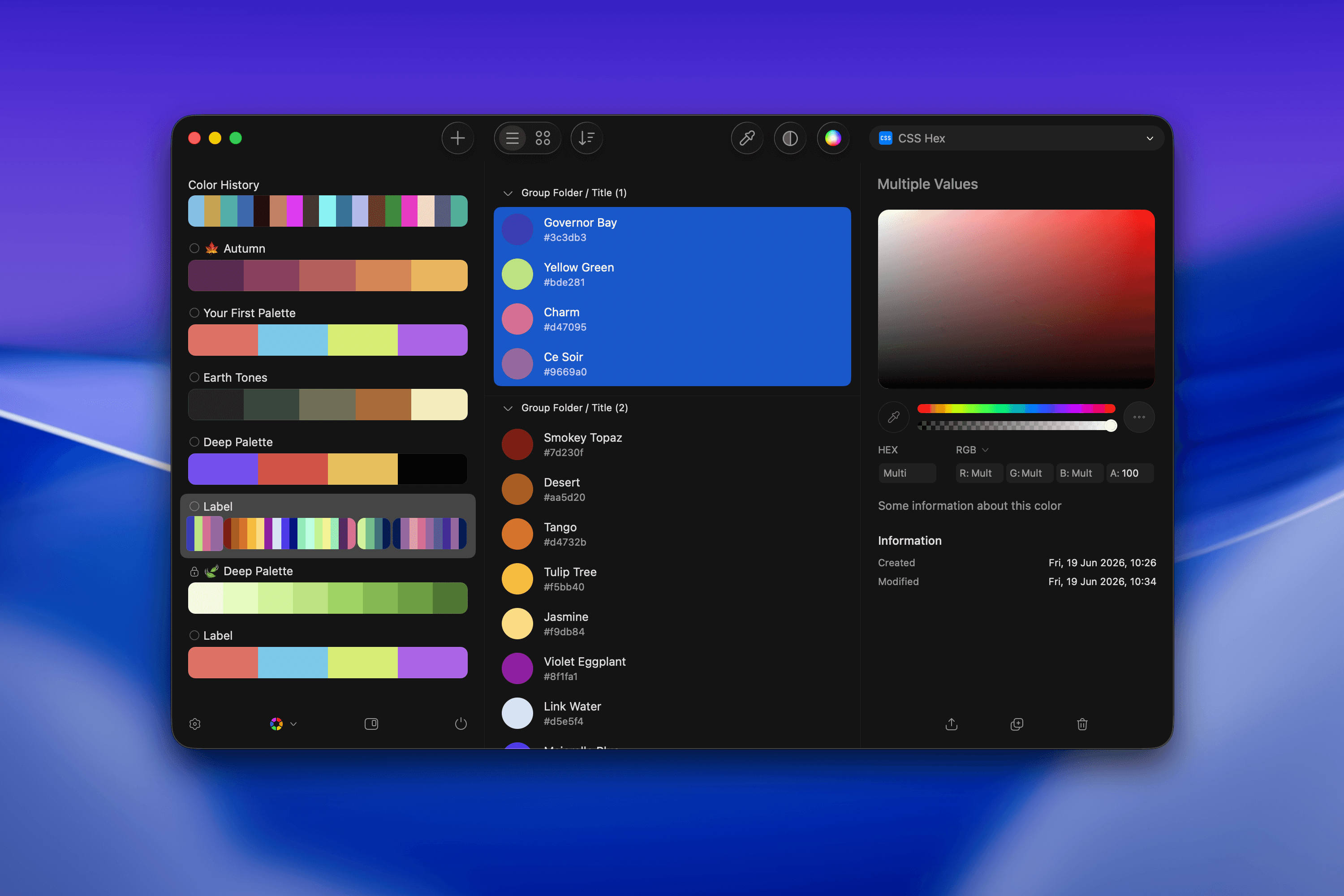
## Grouping Colors
To group colors within a Palette:
* Select the colors you want to group.
* Open the contextual menu (right-click or use the menu icon).
* Select **Group** to create a named subgroup within the palette.
 ## Sorting Colors
Use palette sorting to reorder colors consistently across palette views. Sorting helps keep related colors together and makes larger palettes easier to scan.
Sorting updates how colors appear anywhere that palette is shown, including the palettes list and palette cells. You can still drag colors manually after sorting whenever you need a custom order.
Normal drag moves colors. ⌥-drag copies colors and leaves the original color where it was.
## Share Palette
To share a palette:
* Click the **actions menu** (`•••`) in the top-right of a palette.
* Select **Export** and choose the desired format.
## Sorting Colors
Use palette sorting to reorder colors consistently across palette views. Sorting helps keep related colors together and makes larger palettes easier to scan.
Sorting updates how colors appear anywhere that palette is shown, including the palettes list and palette cells. You can still drag colors manually after sorting whenever you need a custom order.
Normal drag moves colors. ⌥-drag copies colors and leaves the original color where it was.
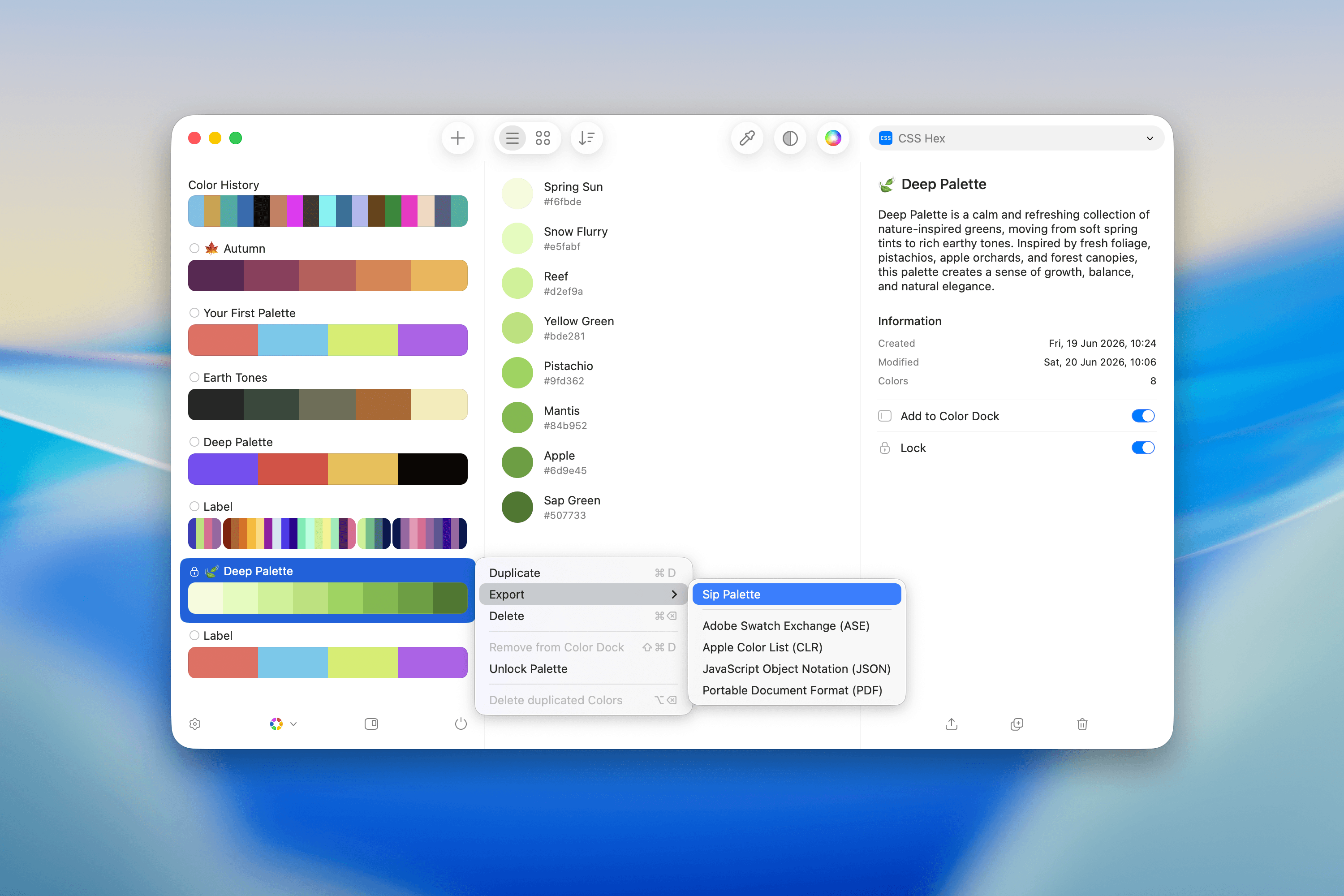
## Share Palette
To share a palette:
* Click the **actions menu** (`•••`) in the top-right of a palette.
* Select **Export** and choose the desired format.
 ### Export Formats
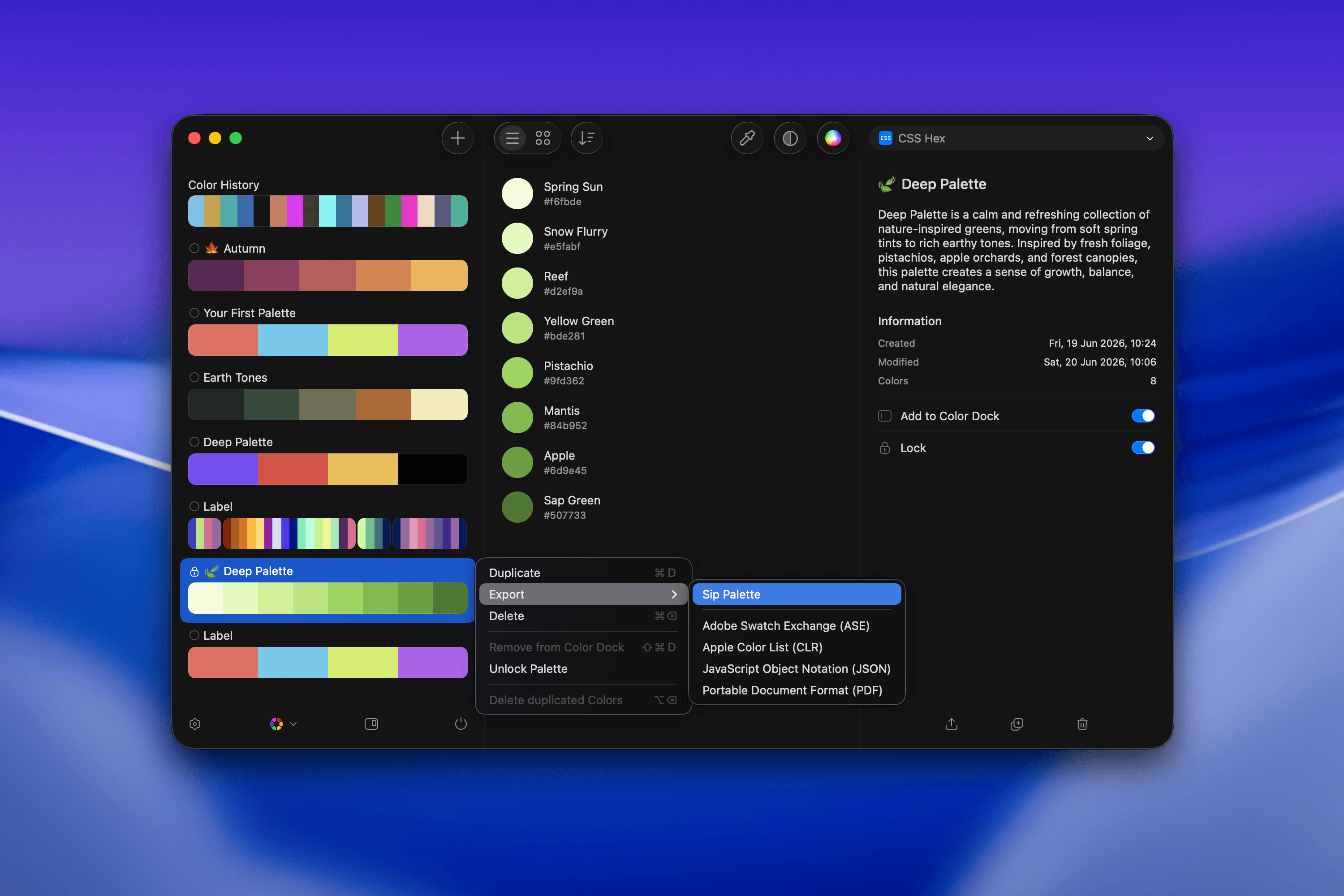
* **Sip Palette** – Re-importable into the app.
* **Adobe Swatch Exchange (ASE)** – For Adobe Creative Cloud.
* **Apple Color List (CLR)** – For macOS apps and Xcode.
* **JavaScript Object Notation (JSON)** – For developers.
* **Portable Document Format (PDF)** – For printable, shareable files.
These formats make it easy to use your color palettes across design, development, and documentation workflows.
### Export Formats
* **Sip Palette** – Re-importable into the app.
* **Adobe Swatch Exchange (ASE)** – For Adobe Creative Cloud.
* **Apple Color List (CLR)** – For macOS apps and Xcode.
* **JavaScript Object Notation (JSON)** – For developers.
* **Portable Document Format (PDF)** – For printable, shareable files.
These formats make it easy to use your color palettes across design, development, and documentation workflows.