> ## Documentation Index
> Fetch the complete documentation index at: https://docs.sipapp.io/llms.txt
> Use this file to discover all available pages before exploring further.
# Snapshots
Use **Snapshots** to backtrack and restore your work in Sip. Whether you accidentally deleted a color or made unwanted changes, Snapshots help you go back to a specific point in time.
## What Are Snapshots?
Snapshots capture the state of your color data at a particular moment. Think of them as backups for your palettes.
You can access Snapshots by going to:
* **Preferences > Snapshots**
## How Snapshots Work
* Sip automatically creates Snapshots based on your selected frequency.
* You can also manually create a Snapshot at any time.
## Creating Snapshots
You can select how often Sip automatically saves Snapshots:
* **Never** — No automatic snapshots are created.
* **Minute** — A new snapshot is created every minute. Use this for frequent changes.
* **Hour** — A new snapshot is created every hour. Useful for regular backups.
* **Day** — A new snapshot is created once a day. Use this for less frequent updates.
### Snapshots UI
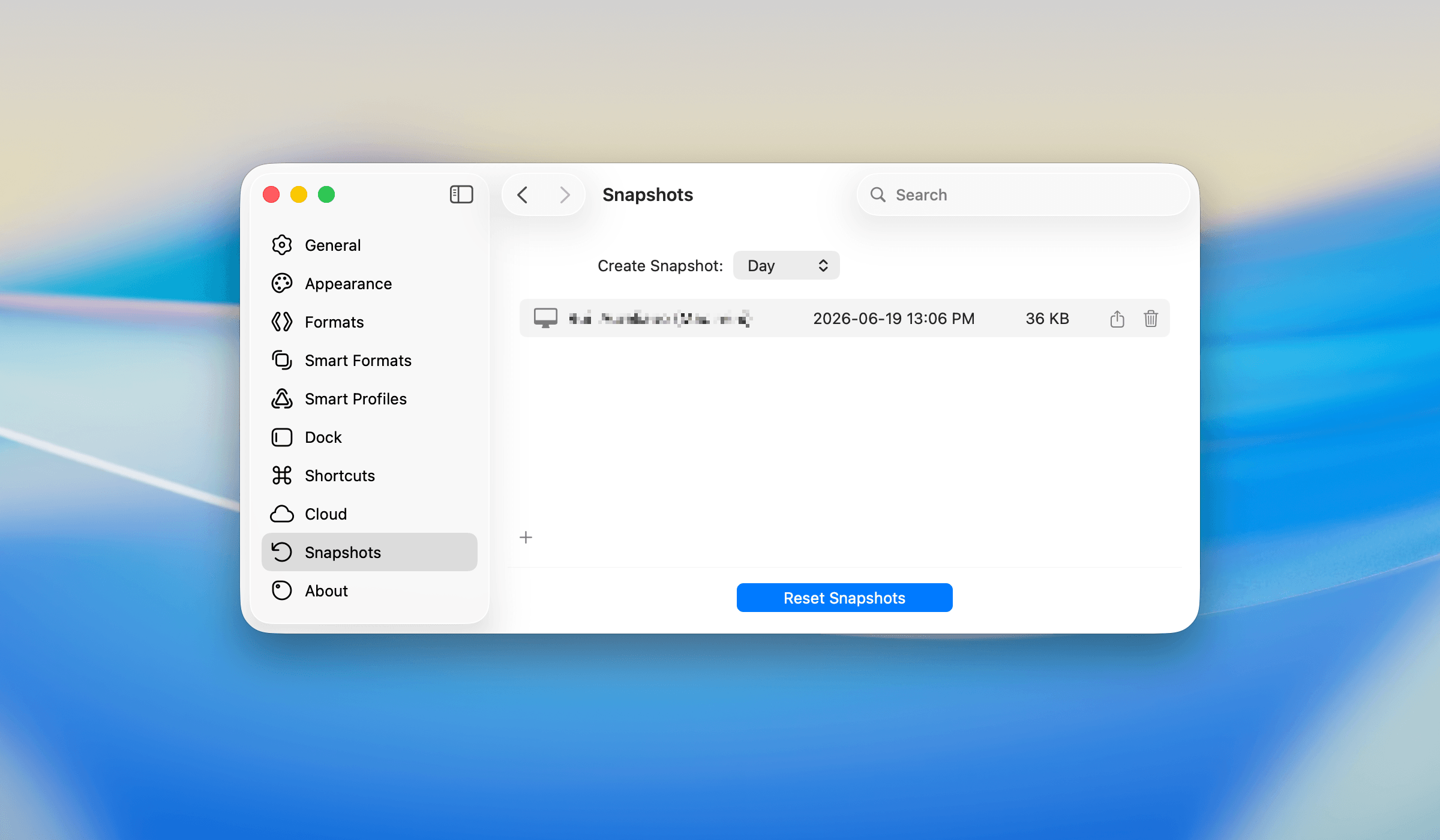
 The Snapshots view shows:
* A list of Snapshots with their creation time, size, and actions.
* Action buttons to:
* **Export** a Snapshot
* **Delete** a Snapshot
## Resetting Snapshots
If you want to start fresh, click **Reset Snapshots** at the bottom. This removes all existing Snapshots and lets you configure a new schedule.
Example: Use Reset Snapshots when you want to clear all previous backups and start a new history.
## Why Snapshots Matter
Snapshots help protect your work. Whether you need to recover a palette from a week ago or undo a change from five minutes ago, Snapshots make it possible.
The Snapshots view shows:
* A list of Snapshots with their creation time, size, and actions.
* Action buttons to:
* **Export** a Snapshot
* **Delete** a Snapshot
## Resetting Snapshots
If you want to start fresh, click **Reset Snapshots** at the bottom. This removes all existing Snapshots and lets you configure a new schedule.
Example: Use Reset Snapshots when you want to clear all previous backups and start a new history.
## Why Snapshots Matter
Snapshots help protect your work. Whether you need to recover a palette from a week ago or undo a change from five minutes ago, Snapshots make it possible.