

Create Palette
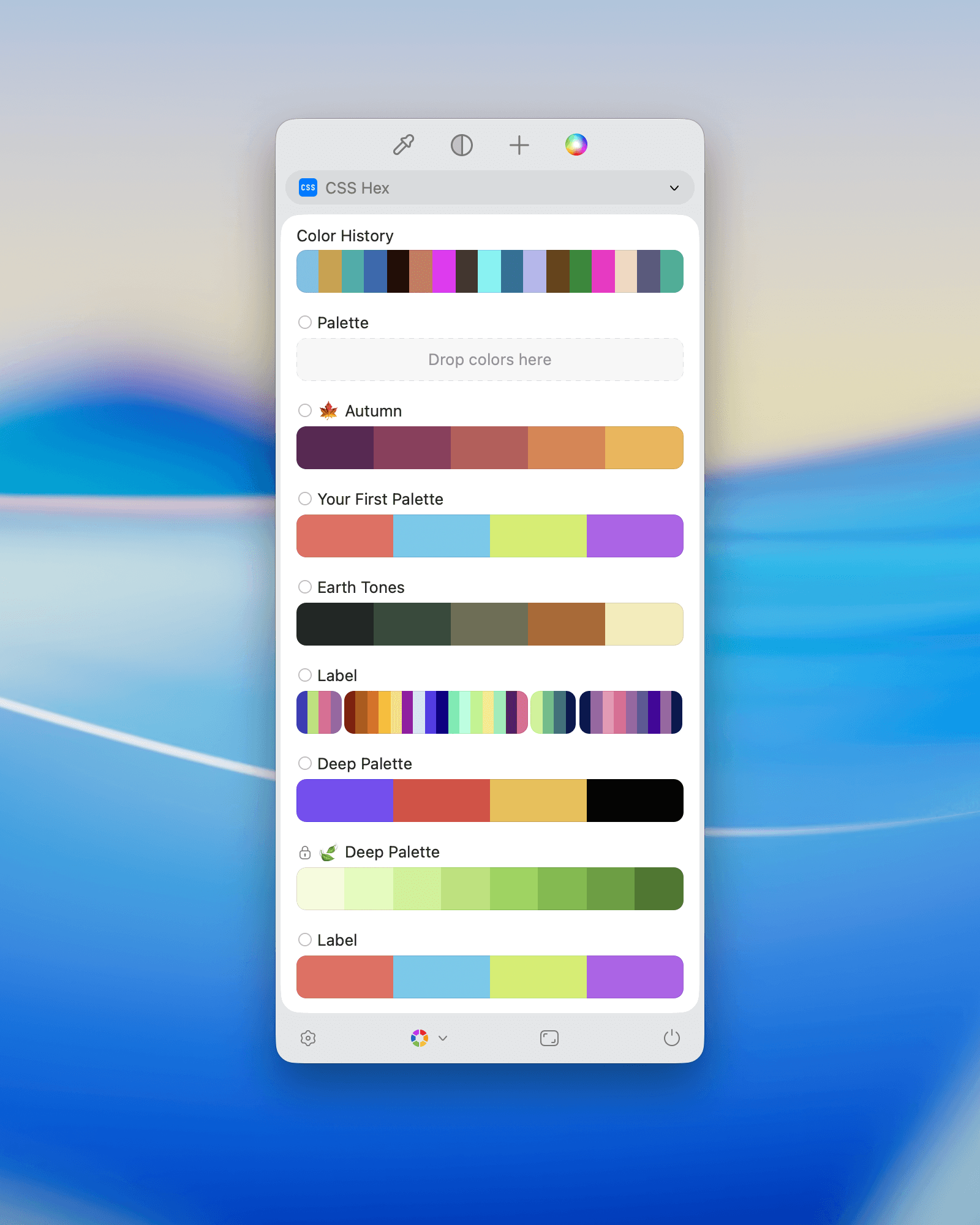
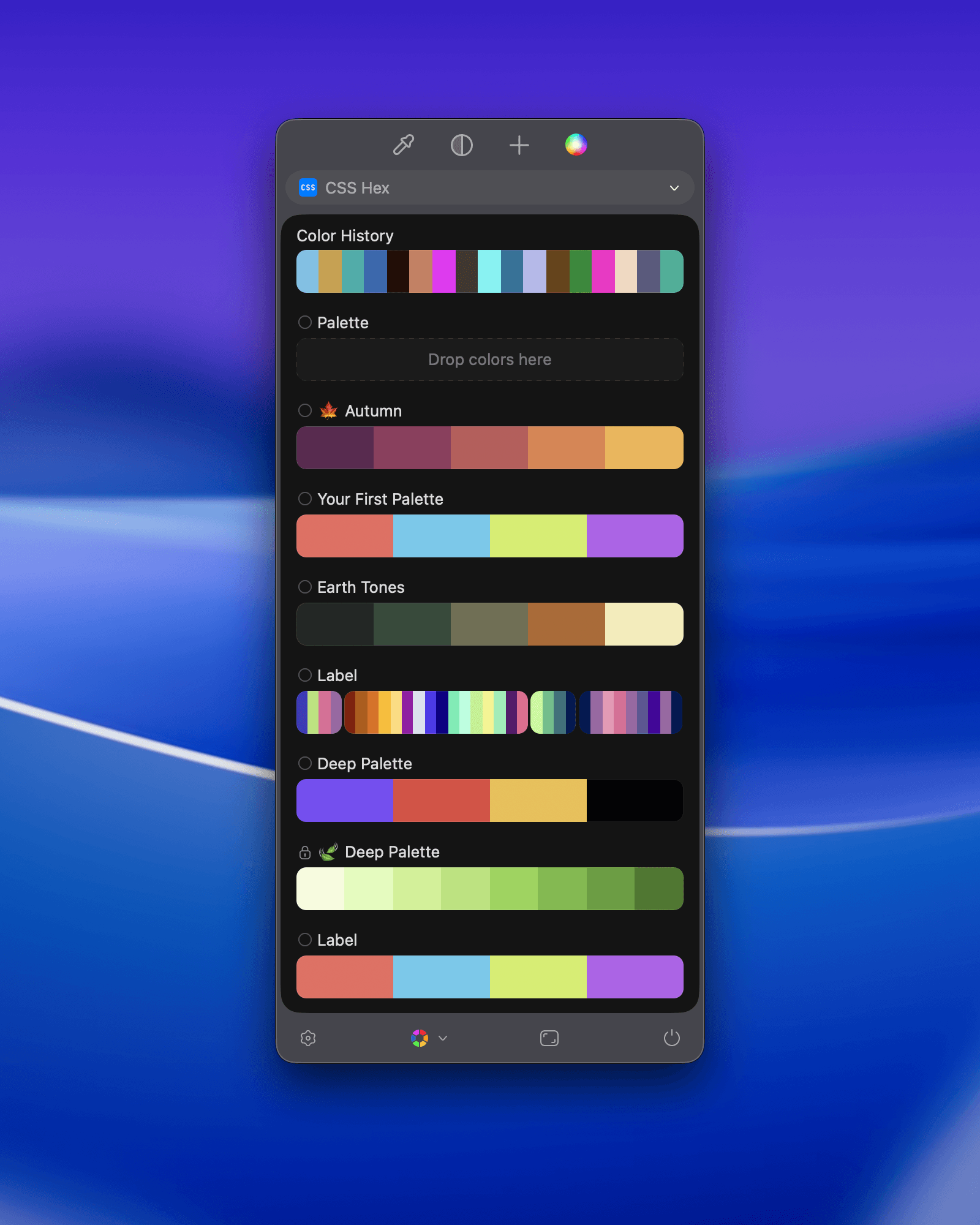
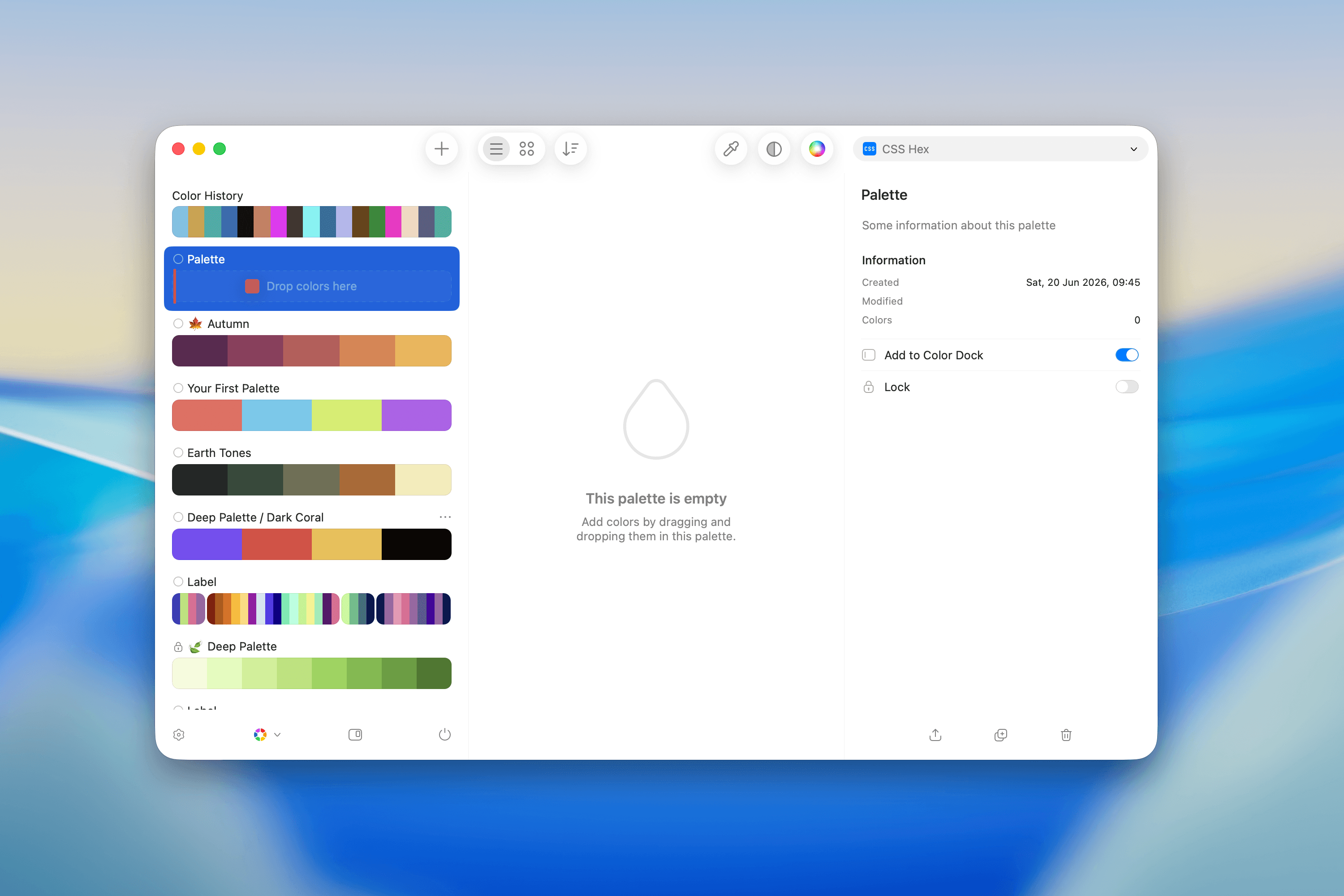
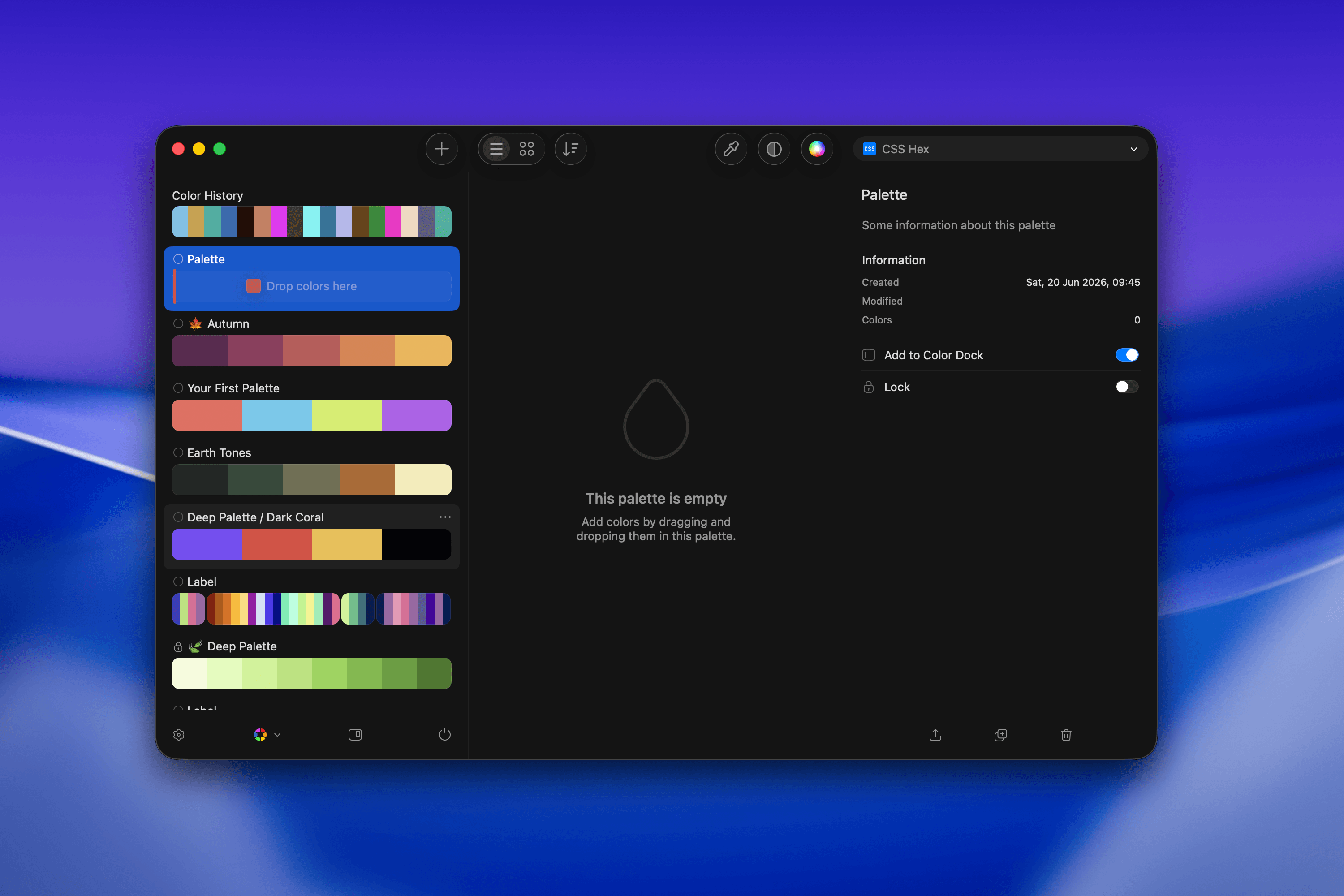
You can create a new palette from the Main Window or Sip’s menu.From the Main Window
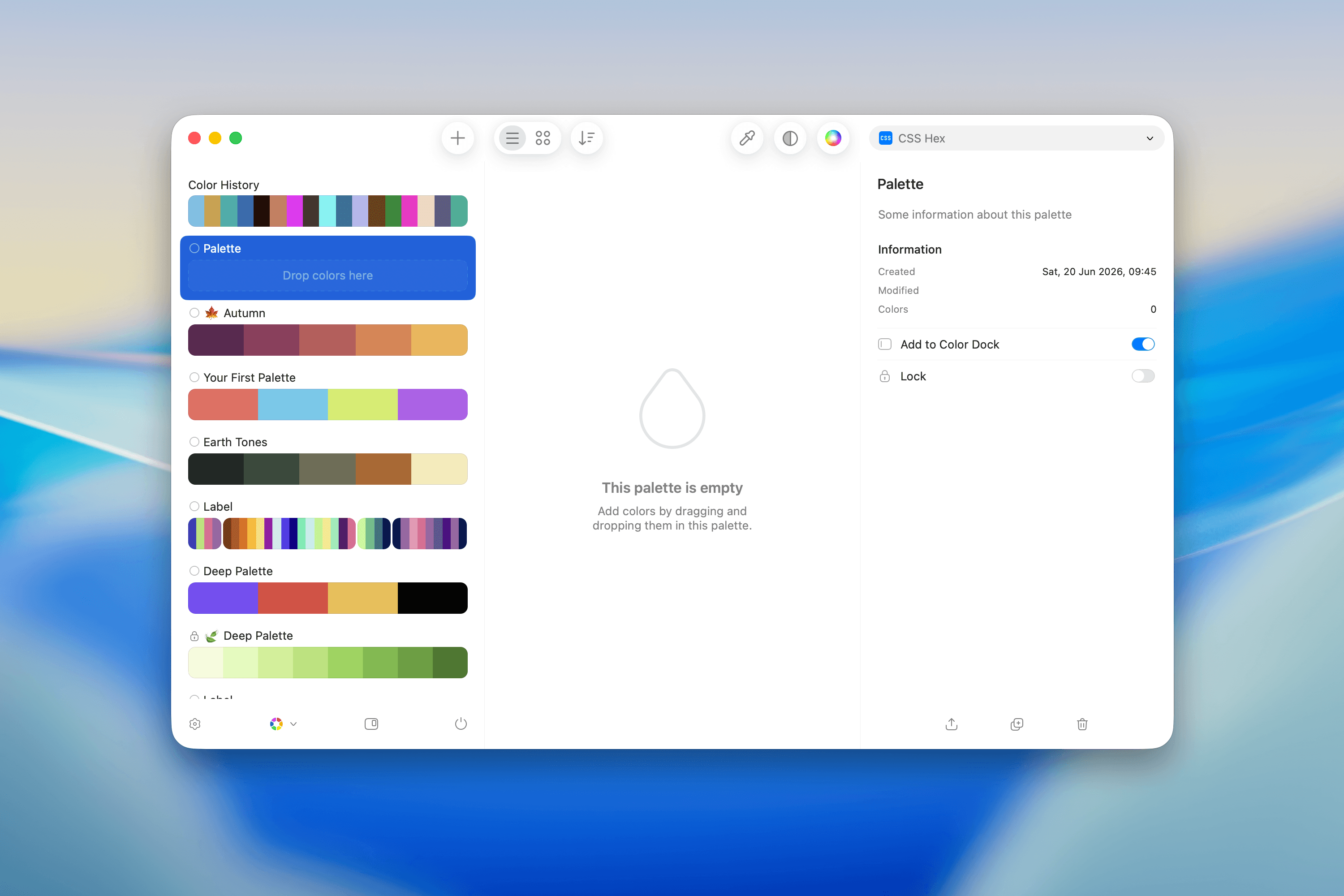
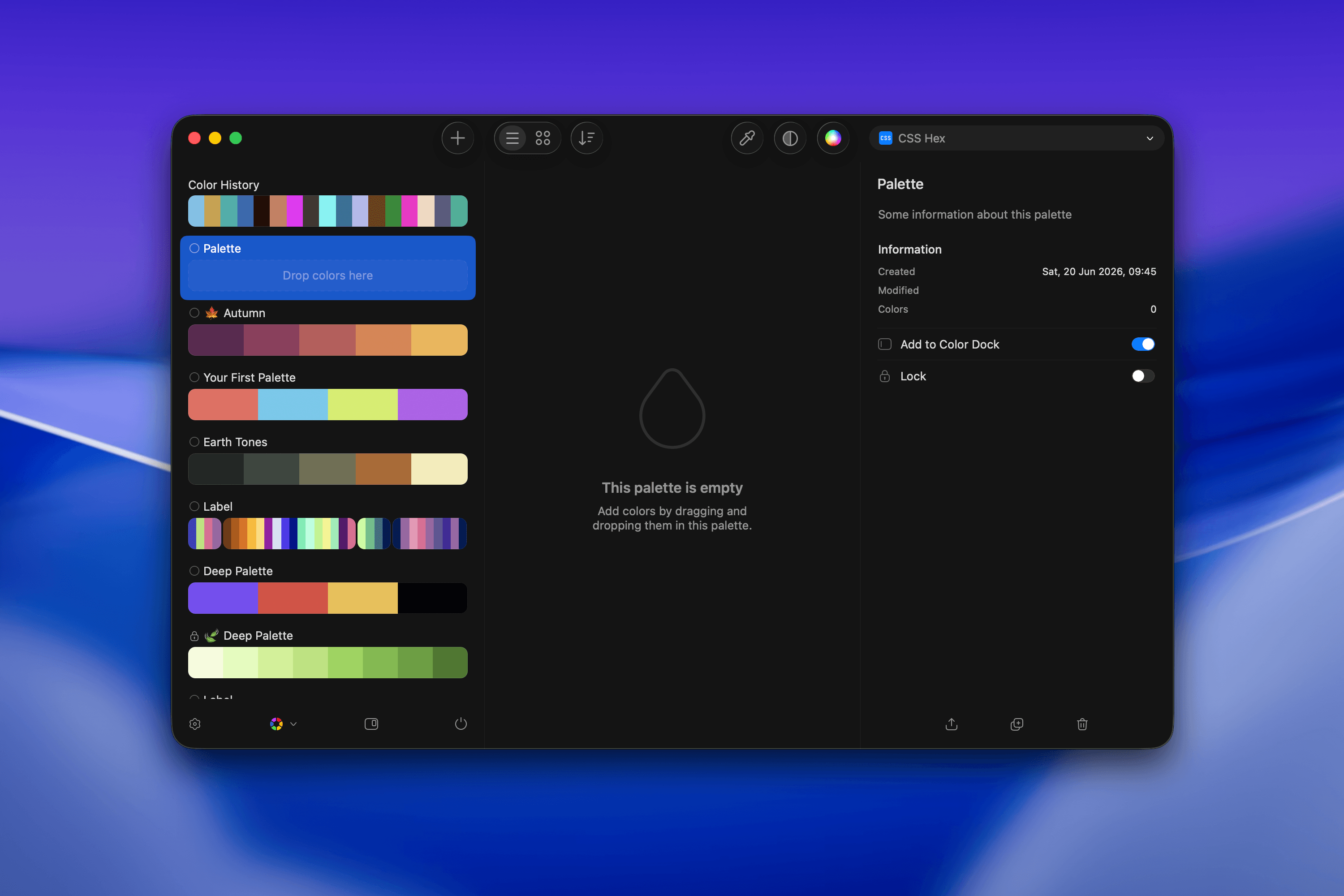
- Click the
+button.
From Sip’s Menu
- Click the
+button in the toolbar.
Add Colors
Once you’ve created a palette, you can add colors to it by:- Using the Color Picker while the Palette is selected.
- Dragging colors from other palettes into the new one.
- Holding ⌥ while dragging to copy colors instead of moving them.
Editing Names and Notes
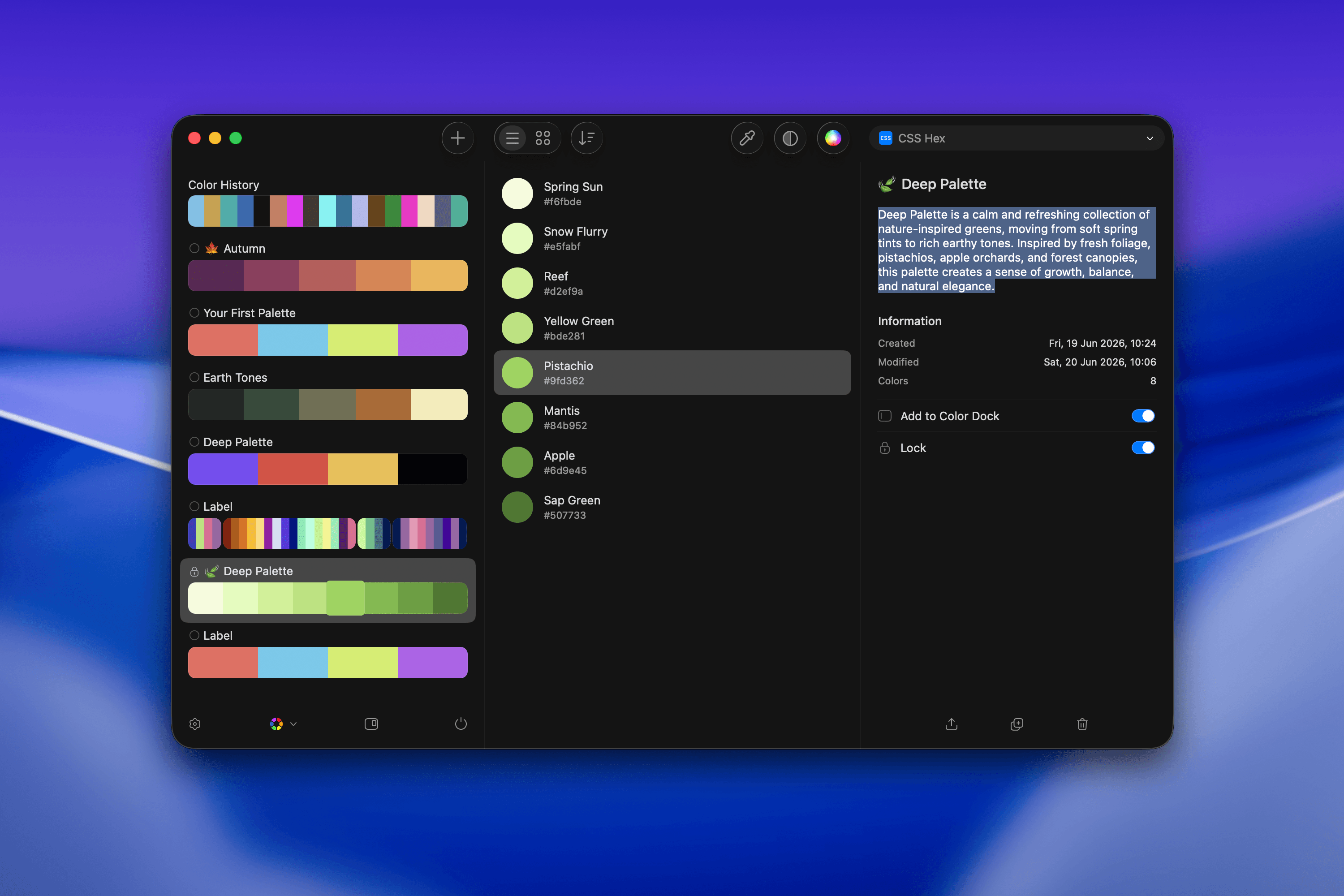
Palettes can be named, and you can add a description to help your team understand the palette’s purpose, use cases, or project relevance.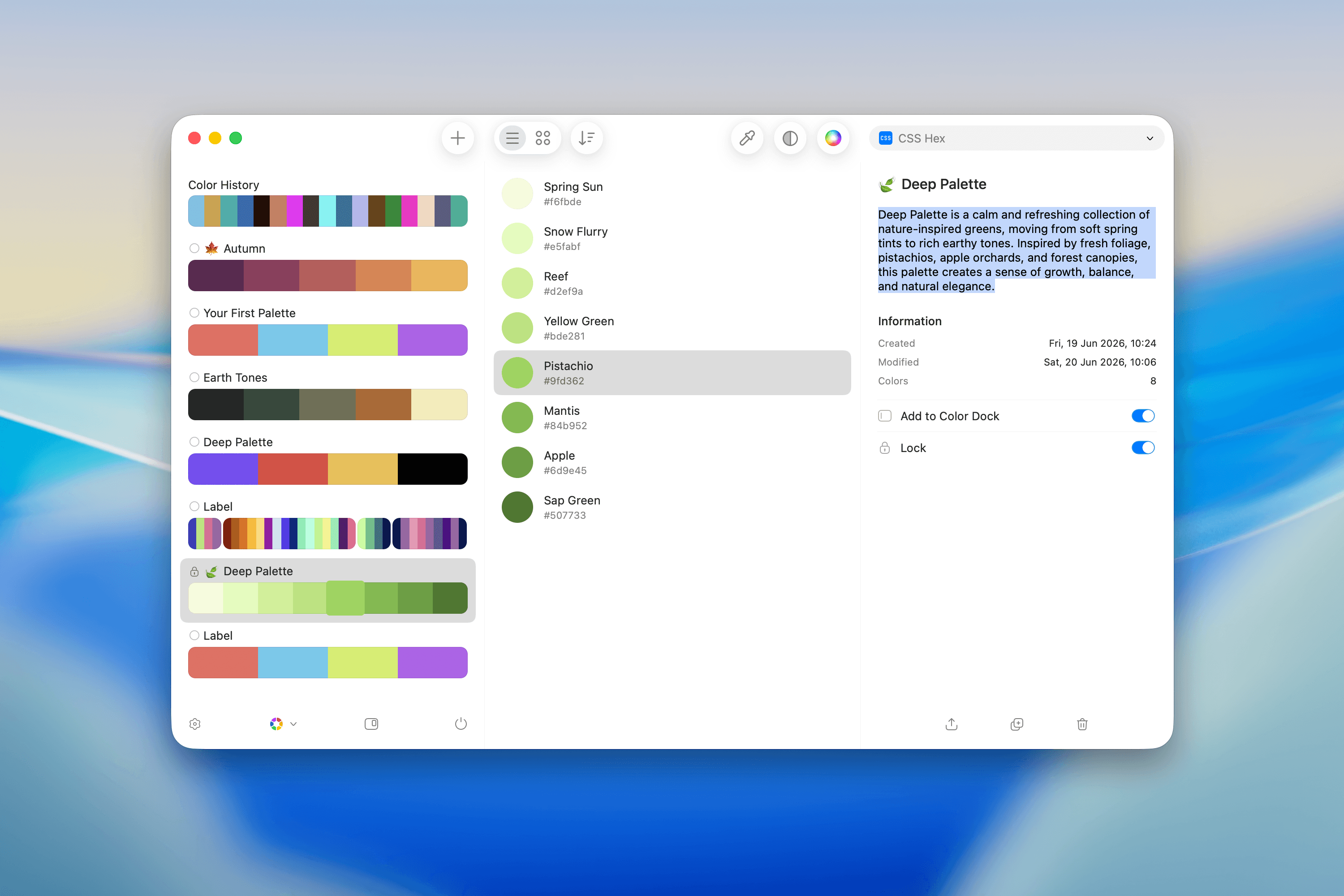
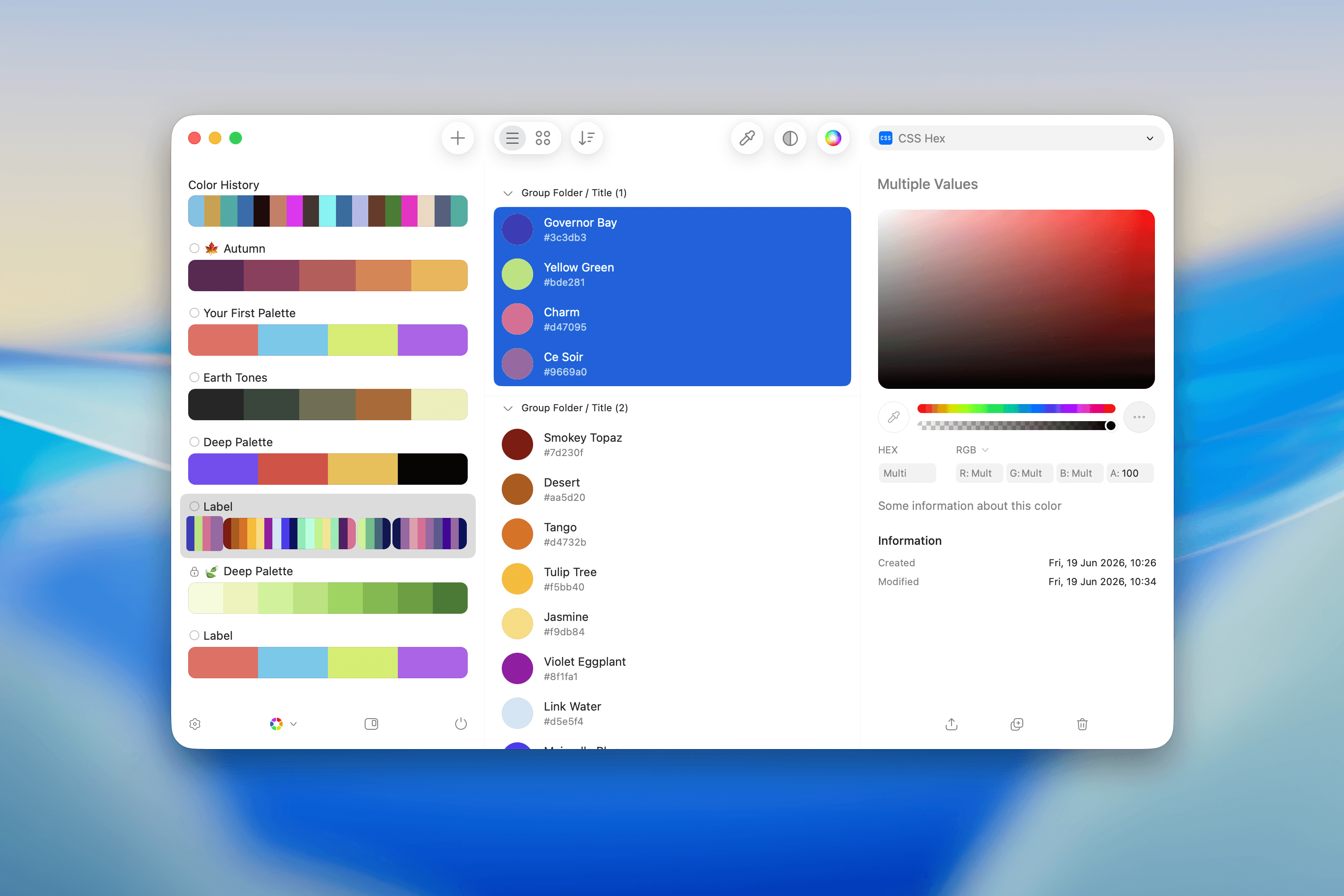
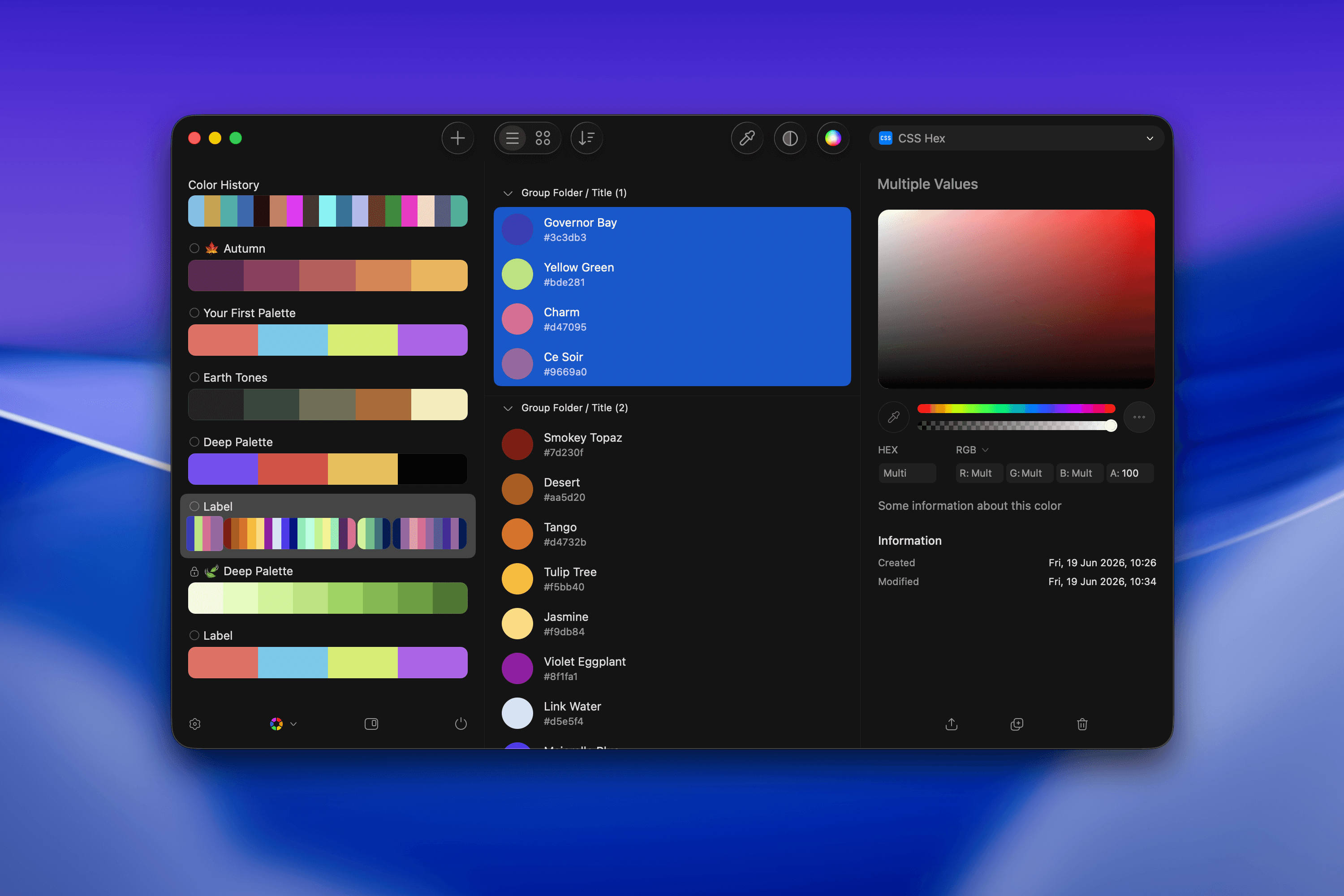
Grouping Colors
To group colors within a Palette:- Select the colors you want to group.
- Open the contextual menu (right-click or use the menu icon).
- Select Group to create a named subgroup within the palette.
Sorting Colors
Use palette sorting to reorder colors consistently across palette views. Sorting helps keep related colors together and makes larger palettes easier to scan. Sorting updates how colors appear anywhere that palette is shown, including the palettes list and palette cells. You can still drag colors manually after sorting whenever you need a custom order.Share Palette
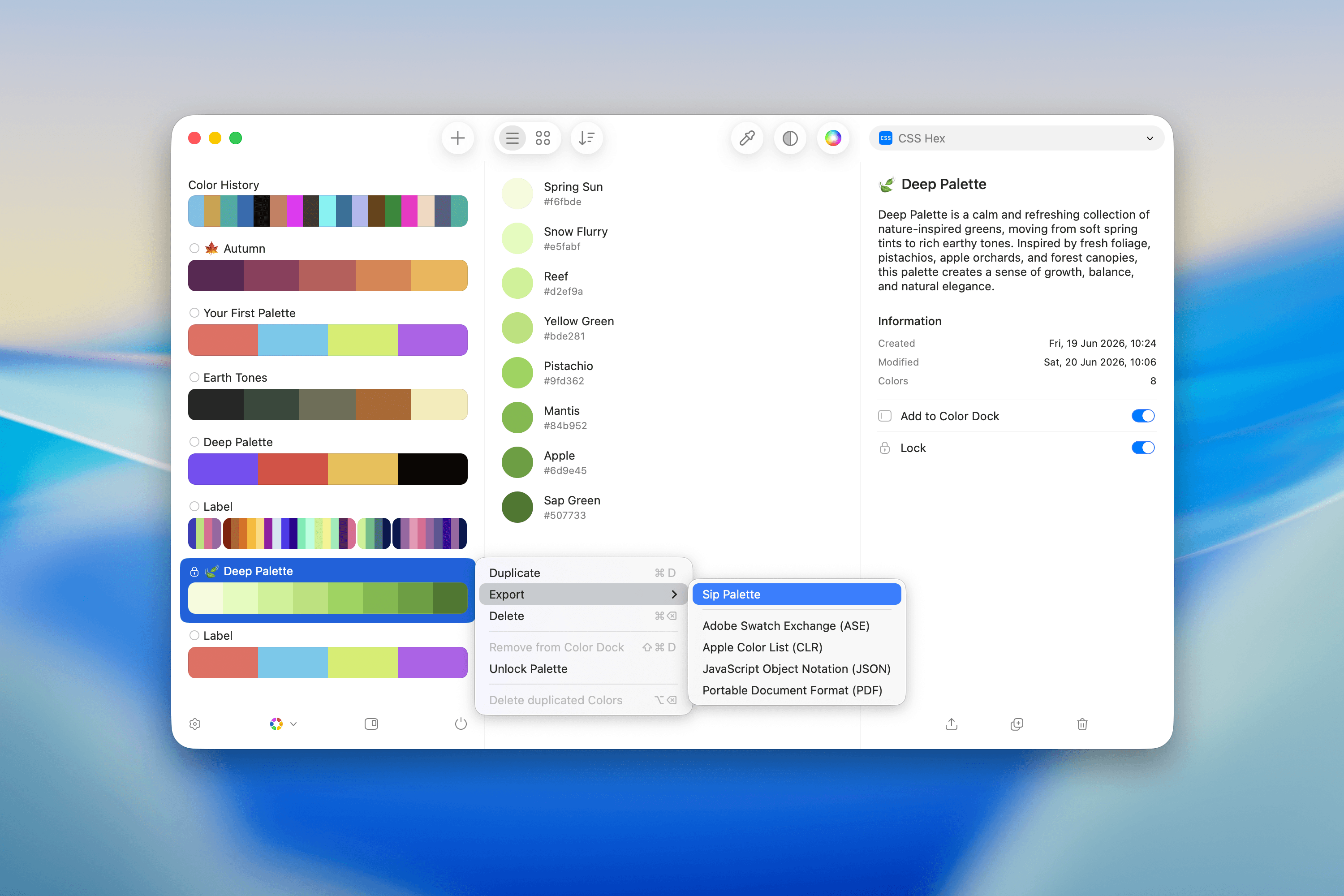
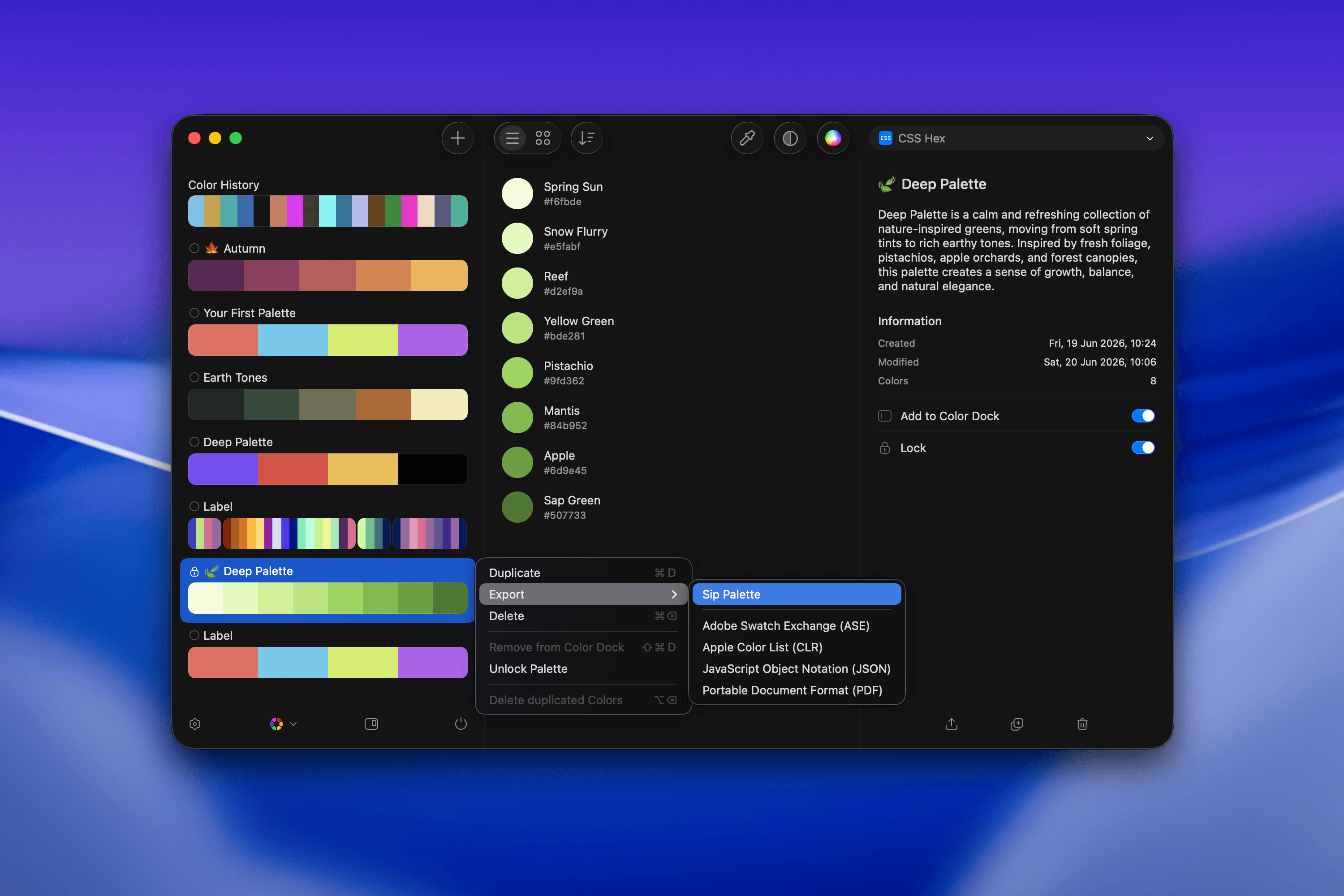
To share a palette:- Click the actions menu (
•••) in the top-right of a palette. - Select Export and choose the desired format.
Export Formats
- Sip Palette – Re-importable into the app.
- Adobe Swatch Exchange (ASE) – For Adobe Creative Cloud.
- Apple Color List (CLR) – For macOS apps and Xcode.
- JavaScript Object Notation (JSON) – For developers.
- Portable Document Format (PDF) – For printable, shareable files.